
ROADMATE 300R - Navigation GPS MAGELLAN - Free user manual and instructions
Find the device manual for free ROADMATE 300R MAGELLAN in PDF.


| Product type | Vehicle navigation GPS |
| Power supply | 12 V via cigarette lighter adapter |
| Screen | Color touch screen |
| Mapping | Pre-installed regional SD card (United States or Canada) |
| Voice guidance | Yes, with voice instructions |
| Points of Interest (POI) | Built-in database (restaurants, ATMs, gas stations, etc.) |
| Trip planner | Yes, up to 20 trips with 20 destinations per trip |
| Trip recording | Trip computer and track recorder |
| Connectivity | USB port (cable sold separately), headphone jack |
| Antenna | Adjustable internal antenna; optional external antenna |
| Memory | Removable SD card (pre-installed) |
| Languages | Multiple languages available (French, English, etc.) |
| Safety | Do not use while driving; mounting should not obstruct view or airbags |
| Dimensions | Approximately 12 x 8 x 2 cm |
| Weight | Approximately 200 g |
| Operating temperature | Avoid prolonged sun exposure |
Frequently Asked Questions - ROADMATE 300R MAGELLAN
User questions about ROADMATE 300R MAGELLAN
0 question about this device. Answer the ones you know or ask your own.
Ask a new question about this device
Download the instructions for your Navigation GPS in PDF format for free! Find your manual ROADMATE 300R - MAGELLAN and take your electronic device back in hand. On this page are published all the documents necessary for the use of your device. ROADMATE 300R by MAGELLAN.
USER MANUAL ROADMATE 300R MAGELLAN
Instructions for Operating the Magellan RoadMate 300R
IMPORTANT INFORMATION
The Magellan RoadMate 300R (Regional) is a vehicle-navigation aid designed to assist you in arriving at your selected destinations. When using the Magellan RoadMate, these safety rules must be followed to prevent accidents that can result in injury or death to yourself or others:
- California law prohibits mounting any item to your windshield. Please check with your state or local law enforcement for applicable regulations regarding windshield mounting. Go to www.magellanGPS.com for alternate mounting solutions.
- When driving, the need to view the display is minimal. Voice prompts will guide you to your destination. The driver should enter data or program the unit only when the vehicle is stopped. Only a vehicle passenger should enter data or program the unit while the vehicle is moving.
It is your responsibility to comply with all traffic laws. - While every attempt is made to ensure that the database is accurate, roadways, points of interest, and business and service locations may change over time. The database does not include, analyze, process, consider, or reflect any of the following: legal restrictions (such as vehicular type, weight, height, width, load and speed restrictions); road slope or grade; bridge height, width, weight, or other limits; population density; neighborhood quality or safety; availability or proximity of law enforcement, emergency rescue, medical, or other assistance; construction work zones or hazards; road or lane closures; road, traffic, or traffic facilities' safety or condition; weather conditions; pavement characteristics or conditions; special events; traffic congestion. It is your responsibility to disregard any unsafe, hazardous, or illegal route suggestions.
- Keep the Magellan RoadMate safe from extreme temperature conditions. For example, do not leave it exposed to direct sunlight for an extended period of time.
- Laws in some states prohibit wearing stereo headphones while operating a motor vehicle. Please contact your state's Department of Motor Vehicles for information.
Take care when mounting the unit in your vehicle, whether using the windshield mount or other mount or accessories, that it does not obstruct the driver's view of the road, interfere with the operation of the vehicle's safety devices such as air bags, or present a hazard to occupants of the vehicle should the unit be dislodged while driving. You assume the risks associated with damage to your vehicle or vehicle occupants as the result of your choices in mounting the unit. - Please refer to the Read Me First document supplied with your Magellan RoadMate for installation instructions.
© 2006 Thales Navigation, Inc. All rights reserved. The Magellan Logo, Magellan, RoadMate, Turn it on and go, TrueView, TrueFix, and QuickSpell are trademarks of Thales Navigation. No part of this user manual may be reproduced or transmitted in any form or by any means, electronic or mechanical, including photocopying and recording, for any purpose other than the purchaser's personal use, without the prior written permission of Thales Navigation.
631314-01 A
Table of Contents
Chapter 1: Contact Information 1
1.1 Technical Support 1
1.2 Warranty Service 1
1.3 Customer Service 1
Chapter 2: Information 2
2.1 About Satellite Navigation 2
2.2 How Satellite Navigation Works 2
2.2.1 Line of Sight 2
2.2.2 Precision 3
2.3 A Word on the Safe Usage of GPS Maps 3
2.3.1 From Source to Destination 3
2.3.2 GPS Maps and Your Safety 4
2.4 Care and Use of the Pre-Installed Regional Secure Digital (SD) Card 4
Chapter 3: Magellan RoadMate 5
3.1 Magellan RoadMate 300R 5
3.1.1 Front View 5
3.1.2 Rear View 6
3.1.3 Left- and Right-Side Views 7
3.1.4 Bottom View 7
Chapter 4: Secure Digital (SD) Cards 8
4.1 Secure Digital (SD) Cards 8
4.1.2 To remove the SD card: 8
4.1.1 To Insert the SD Card: 8
4.2 Regional SD Card Coverage 9
Chapter 5: Installation 10
5.1 Vehicle Installation 10
5.1.1 Installation with the Windshield Mount 10
5.1.2 Installing the External Antenna 11
Chapter 6: Maps and Data 13
6.1 Basemaps vs. Detailed Map 13
6.2 Basemap Routing vs. Detailed Map Routing 13
6.3 Routing Outside Detailed Map Coverage 14
Chapter 7: Basic Operation 15
7.1 Turning the Magellan RoadMate On 15
7.2 Using the Keypad 16
7.2.1 Additional Characters (More) 17
7.2.2 Numerical Characters (123) 17
7.2.3 Using QuickSpell® and AutoFill™ 17
7.3 Help with Address Entry 18
Chapter 8: Selecting Destinations 19
8.1 Choosing the Route Method 20
8.2 Changing the Route Method 20
8.3 Cancelling a Planned Route 21
8.4 Detouring from the Planned Route 22
8.5 Excluding a Maneuver in a Planned Route 22
8.6 Accessing Regions 23
8.7 Selecting a Destination Using "Select Address" 25
8.8 Selecting a Destination Using "Address Book" 26
8.8.1 Previous Destinations 26
8.8.1.1 Routing to A Previous Destination 26
8.8.1.2 Saving a Previous Destination to your Address Book 27
8.8.2 List Addresses 28
8.8.2.1 List All 28
8.8.2.2 List Favorites 30
8.8.2.3 Search Address Book 32
Table of Contents
8.8.3 Create New Entry 34
8.8.3.1 Select on Map 34
8.8.3.2 Select Address 36
8.8.3.3 Dining, ATM, Gas 37
8.8.3.3.1 Search POI by Name 38
8.8.3.3.1.1 Nearby Current Position 38
8.8.3.3.1.2 Nearby City Center 39
8.8.3.3.2 Search Nearest POI 40
8.8.3.3.2.1 Current Position 40
8.8.3.3.2.2 By City Center 41
8.8.3.3.2.3 By Airport 42
8.8.3.3.3 Search Basemap City 44
8.8.3.4 Intersection 45
8.8.4 Trip Planner 46
8.8.4.1 New 47
8.8.4.2 Edit 48
8.8.4.3 Delete, Rename 49
8.9 Selecting a Destination Using "Dining, ATM, Gas..." 51
8.9.1 Search POI by Name 51
8.9.1.1 Nearby Current Position 52
8.9.1.2 Nearby City Center 53
8.9.2 Search Nearest POI 54
8.9.2.1 Current Position 54
8.9.2.2 By City Center 55
8.9.2.3 By Airport 56
8.9.3 Search BaseMap City 57
8.10 Selecting a Destination Using "Intersection" 58
8.11 Selecting a POI on the Map 60
Chapter 9:Traveling 61
9.1 Guidance Information Screens 61
9.1.1 Map Screen 62
9.1.2 Changing the Map Zoom Levels 62
9.1.3 Maneuver List Screen 63
9.1.4 TrueView Screen 63
9.2 Current Location 64
9.2.1 Displaying Information About Your Current Location 64
9.2.2 Save Location 64
Chapter 10:User Options 66
10.1 Trip Computer 66
10.1.1 Stopping or Starting the Trip Computer 67
10.1.2 Saving the Current Trip Report 67
10.1.3 Resetting the Trip Computer 68
10.1.4 Viewing a Saved Trip Report 68
10.1.5 Deleting a Trip Report 68
10.2 Track Recorder 69
10.2.1 Start Track Recorder 69
10.2.2 Stop Track Recorder 70
10.2.3 Save Track Record 71
10.2.4 View Track 71
10.2.5 Delete, Rename Track 72
10.3 Configuration 74
10.3.1 Brightness 74
10.3.2 Volume 75
10.3.3 Auto Power Off 75
10.3.4 Language 76
Table of Contents
10.4 User Settings 76
10.4.1 POI Selection 76
10.4.2 Map Options 77
10.4.3 Select Map Color 78
10.4.4 Route Preferences 78
10.4.5 Split TrueView 79
10.4.6 Menu Colors 79
10.4.7 Tone Options 80
10.4.8 Diagnostics 80
10.4.8.1 GPS Status 80
10.4.8.2 Initialize GPS 81
10.4.8.3 Set GPS Position 81
10.4.8.3.1 Search by Street 81
10.4.8.3.2 Search By City 82
10.4.8.4 Product Information 83
10.4.8.5 Video Test 83
10.4.8.6 Touch Screen Test 83
10.4.8.7 Keypad Test 83
10.4.8.8 Audio Test 84
10.4.8.9 Headphone Test 84
10.4.8.10 Simulator Mode 84
10.4.8.11 System Messages 85
10.4.8.12 Repair 85
10.4.9 User - Edit Name 85
10.4.10 Password Settings 86
Chapter 1: Contact Information
If you need support for your Magellan RoadMate and you wish to contact Thales, please use the following information to direct your questions/comments to the proper person.
1.1 Technical Support
If you need technical assistance or "how-to" help, or if you have a technical question about the functionality of your Magellan product, please contact us on the Internet at www.magellangps.com or reach us by fax or by phone.
Our Technical Support phone representatives are available Monday through Friday, 6:00 a.m. to 5:00 p.m. PST/PDT. After hours, you may leave a detailed voice mail message that will be returned within the next business day.
Telephone: (866) 868-2259 or (909) 394-5000 (Outside the United States)
You may also reach Technical Support by Fax: (909) 494-7777 [Attn: Tech. Support]; or E-Mail: magellansupport@thalesnavigation.com
1.2 Warranty Service
To obtain warranty service on your unit, you must contact us for a return authorization before you ship the product. Packages arriving at our dock without an RA will be refused.
To obtain an RA, simply contact our Technical Support group at: Telephone: (866) 868-2259 or (909) 394-5000; Fax: (909) 494-7777 [Attn: Tech. Support]; or E-Mail: magellansupport@thalesnavigation.com
1.3 Customer Service
If you need to order accessories, you can call our Customer Service Department Monday through Friday, 6:00 a.m. to 5:00 p.m. PST/PDT, or visit our Web site at www.magellangps.com.
Telephone: (866) 339-0488 or (909) 394-5000 (Outside the United States); Fax: (909) 394-7078.
Chapter 2: Information
2.1 About Satellite Navigation
Global satellite navigation is an exciting technology, providing enhanced productivity and accuracy in a vast number of industries. It adds a new level of enjoyment and safety to a wide range of navigation, sports, and recreational activities.
A Global Navigation Satellite System (GNSS) is a network of satellites that transmit high-frequency radio signals containing time and distance data that can be picked up by a receiver, allowing users to pinpoint their precise locations anywhere around the globe.
There are two Global Navigation Satellite Systems in operation: the U.S. Global Positioning System (GPS) and the Russian GLOBal NAVIGATION Satellite System (GLONASS). These systems are constantly being upgraded to meet higher standards of reliability. A third GNSS named GALILEO, after the Italian astronomer of the early 1600s, is being developed in Europe specifically to provide a higher standard of integrity and reliability, required to ensure the safety of lives during transport by air, land and sea, without the use of additional augmentation systems.
While the GPS and GLONASS satellite networks are being developed to achieve maximum performance, Satellite-Based Augmentation Systems (SBAS) have been established to provide improved accuracy. SBAS provides differential signal corrections for GPS and GLONASS transmissions with the use of ground stations and geostationary satellites in specific regions. This is GNSS-1, the first phase in establishing the required integrity for high-precision satellite navigation.
GNSS-2 requires the launching of new satellites into orbit and a complete upgrade of the existing satellite systems. This second phase is already well underway. GALILEO, scheduled to begin service in 2008, is being developed to meet the standards of GNSS-2 for rapid and reliable, certified precision positioning.
2.2 How Satellite Navigation Works
Global navigation satellites continuously transmit time and distance information as they orbit the earth in a precise formation. Navigation satellite receivers use this information to calculate an exact location through triangulation. Every point on Earth is identified by two sets of numbers called coordinates. These coordinates represent the exact point where a horizontal line, known as latitude, crosses a vertical line, known as longitude. The receiver locks on to at least three satellites and uses the information received to determine the coordinates of the receiving device.
By comparing the time the signals were transmitted from the satellites and the time they were recorded, the receiver calculates how far away each satellite is. The distance of the receiver from three or more satellites reveals its position on the surface of the planet. With these distance measurements, the receiver might also calculate speed, bearing, trip time, distance to destination, altitude, and more.
The satellite-navigation device may display its position as longitude/latitude, Universal Transverse Mercator (UTM), Military Grid (MG), or simply as a point on an electronic map. Many Thales Navigation receivers provide comprehensive mapping data, making satellite navigation an easy tool to enhance your recreational and industrial activities.
2.2.1 Line of Sight
Satellite-navigation receivers operate by line of sight with global-positioning satellites. This means that at least three satellites must be in "view" of a receiver in order to calculate longitude and latitude. A fourth satellite must also be within line of sight to calculate altitude. On average, eight satellites are continuously within line of sight of every position on Earth; the more satellites in view, the more accurate the positioning.
Though the radio signals of navigation satellites will pass through clouds, glass, plastic, and other lightweight materials, satellite-navigation receivers will not work underground or in other enclosed spaces.
Chapter 2: Information
2.2.2 Precision
On average, a satellite-navigation receiver is accurate to within 15 meters. Thales Navigation employs several technologies to increase the accuracy of their professional and Magellan®-branded receivers. An accuracy of 3 meters or better is achieved using correction signals from satellite navigation-augmentation systems. In the U.S., an accuracy of 3 meters is achieved using signal corrections from a network of ground stations and fixed-position satellites known as WAAS (Wide-Area Augmentation System). Throughout Europe a similar system, EGNOS (European Geostationary Navigation Overlay System), provides the same accuracy. In Asia, satellite navigation-signal correction is provided by MSAS (Multifunctional Transport Satellite-based Augmentation System). Other ways to increase the accuracy of satellite navigation include the use of DGPS (Differential Global-Positioning System); ground relay stations, set at known positions, transmit corrected satellite-navigation signals. Various methods and applications of DGPS can increase satellite navigation accuracy from a few meters to within a few millimeters. Using DGPS requires a differential-beacon receiver and antennae in addition to a satellite-navigation device. Accuracy can also be increased using an RTK (Real-Time Kinematic) satellite-navigation system. This is a receiver capable of transmitting a phase-corrected signal from a known position to one or more rover receivers.
A number of positioning errors can occur, limiting accuracy to within 15 to 25 meters. These errors are monitored and compensated for in a number of ways:
Orbiting errors -- Occasionally a satellite's reported position does not match its actual trajectory. In the U.S., the Department of Defense continuously monitors each satellite, making orbital corrections with onboard booster rockets.
Poor geometry -- If all of the satellites within line of sight of a receiver are clustered closely together, or lined up relative to the position of the receiver, the geometric calculations necessary for triangulating a position become difficult and less reliable. The use of differential-correction signals from satellite-based augmentation systems or DGPS can compensate for both orbital errors and poor geometry.
Multipath signals -- Signals may be reflected off tall buildings or other obstructions before reaching the receiver, increasing the distance a signal travels and reducing accuracy.
Thales Navigation receivers make a number of complex mathematical calculations to effectively compensate for other potential errors in positioning:
Atmospheric delay -- Satellite-navigation signals slow as they pass through the Earth's atmosphere. Thales Navigation receivers calculate the average delay in nanoseconds to compensate.
Clock errors -- The clock built into a receiver is not as accurate as the atomic clock on a navigation satellite, which is accurate to one second every million years. Each Thales Navigation receiver compensates for time differentials by comparing the time signals of several satellites and adjusting its calculations and its clock to match.
2.3 A Word on the Safe Usage of GPS Maps
Just like paper maps, maps on GPS devices vary greatly in terms of information included and visual presentation. Whether topographical maps, roadmaps or marine charts, each map and the data it presents is designed for a specific purpose. For example, marine charts will often present only a minimal representation of roadways and are not a substitute for street maps. Topographic maps usually provide minimal detail about bodies of water, and do not contain marine navigational markers.
Maps also vary widely in scale: the smaller the scale, the more detailed the map. Therefore, when using GPS maps (just as with paper maps) it is important to consider what type of map you are using in your explorations and to use common sense.
2.3.1 From Source to Destination
Thales Navigation, maker of Magellan GPS products, is not a cartography company. We do not create the maps that are used on our GPS devices. We seek to acquire map data from the best public and private sources available at the time of
Chapter 2: Information
publication. Thales Navigation licenses* topographical maps, roadmaps, marine charts and points of interest data from commercial and governmental cartographic sources that provide raw map data. Thales Navigation processes and compresses the raw data into a format that makes it presentable and manageable to work on our GPS devices. And to ensure that our map data is as robust as possible, data from multiple sources are often combined to provide a better user experience for our customers. This processing does not alter the landforms, coordinates or other spatial data that comes in the raw data. The accuracy of the maps is fundamentally dependent on the source data used to create them. Map data changes frequently due to both natural and man-made causes. As a result, governmental and commercial cartography companies must continuously review correct and improve upon their map data. We release new versions of our maps on a regular basis to reflect these changes.
After processing the data, we test the compatibility of the map with our GPS devices to ensure that the products we release work properly on our GPS devices. We also beta test our products to get customer feedback prior to release.
2.3.2 GPS Maps and Your Safety
Remember, your GPS device is an aid to navigation. It must be used with common sense and it is important that users interpret GPS map data with a critical eye. Landscapes and roads change or may be impassable, trees and tall buildings can obscure GPS signals and your GPS device may not always reflect the complete picture. When using GPS, you must combine the information provided by your GPS map with your relevant local knowledge, road signage, buoys, depth soundings and changing local conditions to generate a complete understanding of your situation.
It is your responsibility to ensure compliance to all traffic laws, including pedestrian observance of crosswalks, and to use good judgment while operating the Magellan GPS receiver. Safety must be your primary concern. The Magellan GPS receiver must not be used while engaged in any activity requiring the user's full attention to the environment. For instance, the Magellan GPS receiver should be operated only by vehicle passengers or by the driver when the vehicle has come to a complete stop. The driver must not attempt to view the display while driving. A climber must not attempt to view the display while negotiating treacherous terrain. Disregard any unsafe, hazardous or illegal route suggestions.
Magellan maps do not include, analyze, process, consider or reflect any of the following: legal restrictions (such as weight, height, width, load and speed restrictions); road slope or grade; bridge height, width, weight or other limits; population density; neighborhood quality or safety; availability or proximity of law enforcement, emergency rescue, medical or other assistance; construction work zones or hazards; road, sidewalk or waterway closures or conditions; weather conditions; pavement characteristics or conditions; special events; traffic congestion; time of day.
*Thales Navigation licenses map data from governmental sources such as, but not limited to, US Geological Survey (USGS), the National Oceanic and Atmospheric Administration (NOAA-NOS) and the Canadian Hydrographic Service (CHS). Thales Navigation licenses map data from commercial cartography companies such as Navigation Technologies, Navionics, DMTI and C-Map.
2.4 Care and Use of the Pre-Installed Regional Secure Digital (SD) Card
The Magellan RoadMate 300R comes with an SD card that is pre-installed in the unit. This card contains map data that covers select regions United States or Canada (see “Regional SD Card Coverage” on page 9) and should never need to be removed. However, in the event that the SD Card should need to be removed from the unit, for example when switching to a different regional or full coverage card, reinstalling it is simple and fast. See “Secure Digital (SD) Cards” on page 8 for instructions on inserting and removing SD Cards.
The SD card slot on your Magellan RoadMate employs what is called a “push-push” method of locking and releasing. In other words, when you insert the card you must push it to lock it in, and to release it you must push it also. It is important to remember to never remove or insert the SD card when the unit is on. Always make sure to turn the power off when removing or inserting the SD card. Failure to do so may cause the unit or the data on the SD card to become corrupt or unusable.
Chapter 3: Magellan RoadMate
3.1 Magellan RoadMate 300R
3.1.1 Front View
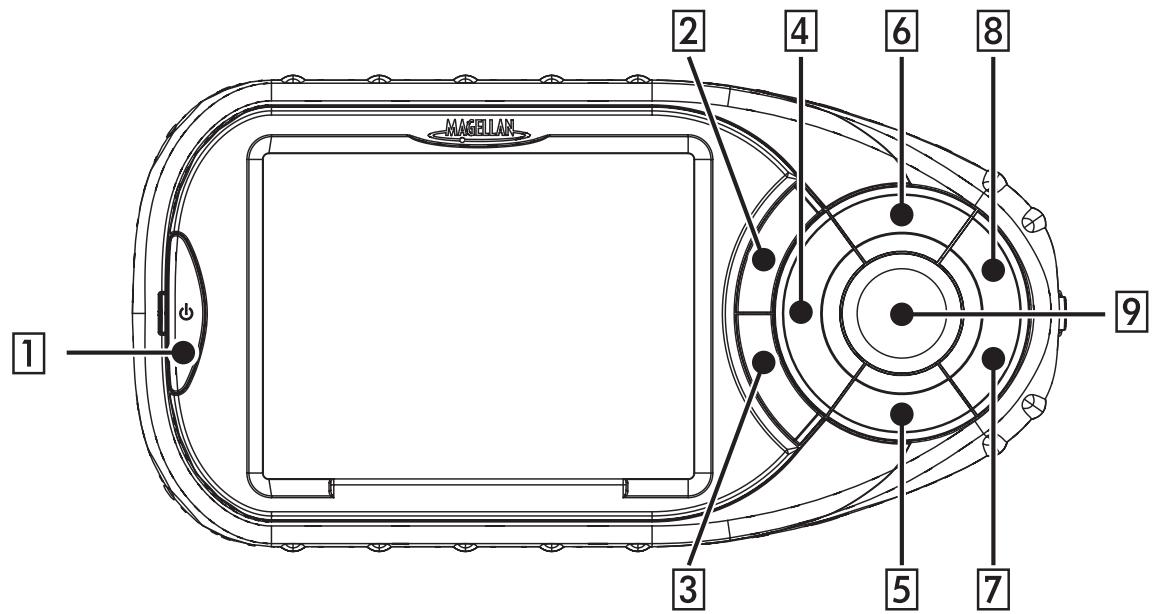
| 1 | Power | Press to turn the Magellan RoadMate on or off. |
| 2 | Zoom In | While viewing the map, press to enlarge the map view |
| 3 | Zoom Out | While viewing the map, press to shrink the map view |
| 4 | View | Switch between Map, Maneuver List, and TrueView |
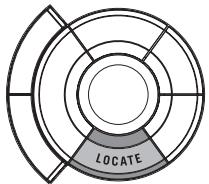
| 5 | Locate | Show details of your current location and save it to your address book |
| 6 | Option | Access customizable features |
| 7 | Cancel | Cancel changes and selections |
| 8 | Enter | Confirm menu selections and text input, repeats last voice prompt during routing while on the Map Screen |
| 9 | Navigation Key | Select menu options, characters, and pan map |
Chapter 3: Magellan RoadMate
3.1.2 Rear View
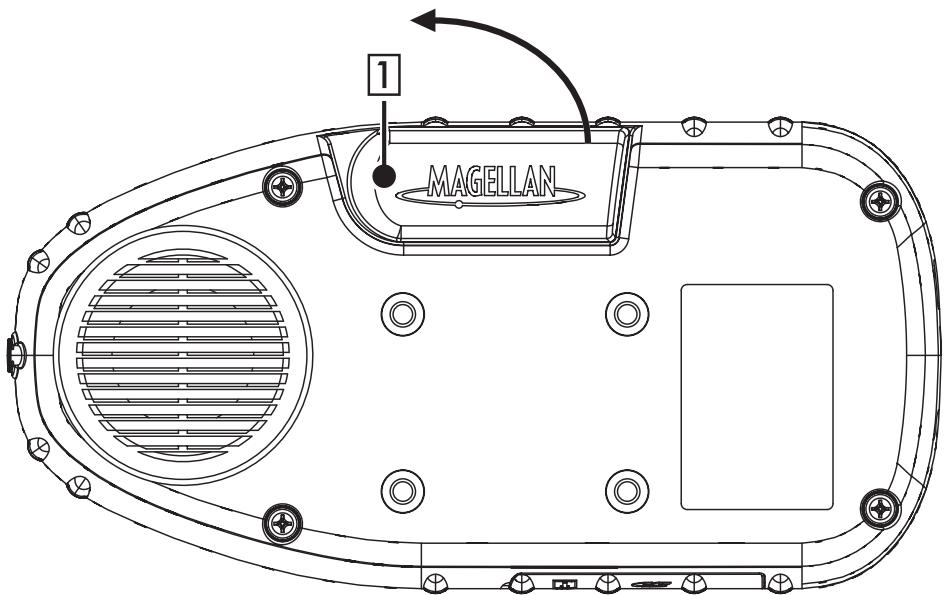
| 1 | Antenna | Rotate up when in use to receive signals from the GPS satellite network |
Chapter 3: Magellan RoadMate
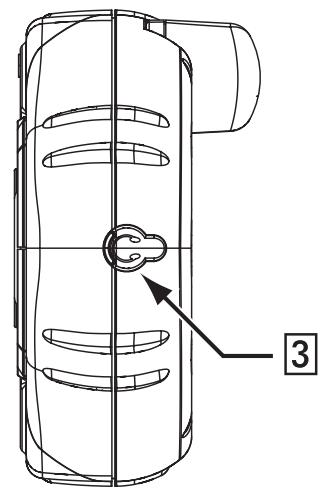
3.1.3 Left- and Right-Side Views
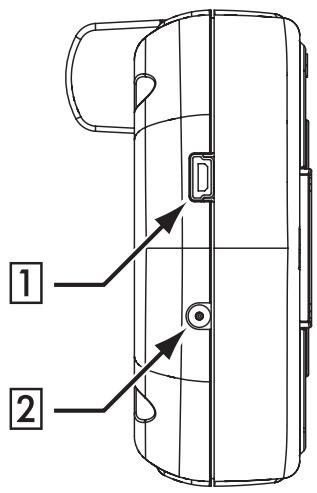
| 1 | USB Connection | Connect to your PC (USB Cable sold separately) |
| 2 | Power Connection | Plug into your vehicle or at home (requires AC Adapter sold separately) |
| 3 | Headset Connection | Plug in an earpiece for noisy areas |
3.1.4 Bottom View
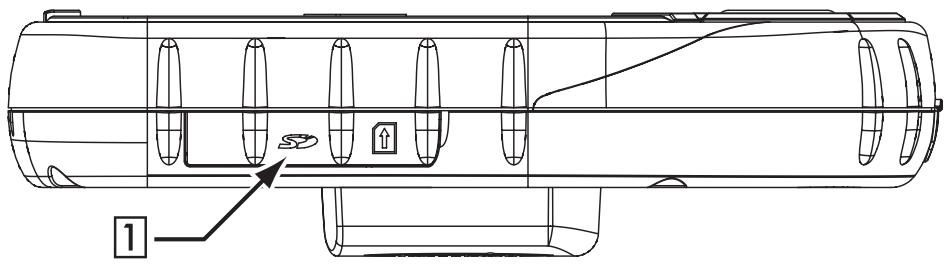
| 1 | SD Card Slot | Secure Digital (SD) Card slot |
Chapter 4: Secure Digital (SD) Cards
4.1 Secure Digital (SD) Cards
The SD card slot on your Magellan RoadMate employs what is called a "push-push" method of locking and releasing. In other words, when you insert the card you must push it to lock it in, and to release it you must push it also.
Your Magellan RoadMate comes with a pre-installed regional SD Card (see “Regional SD Card Coverage” on page 9). You should not need to remove or exchange this card except when additional geographical coverage is required. Please visit our website at www.magellanGPS.com to purchase additional regional SD Cards.
Make sure the unit is off. "Hot-Swapping" or changing cards with the power on is not supported and may damage the unit and the SD card.
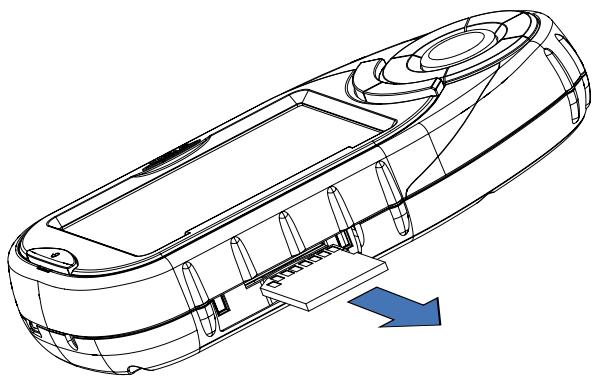
4.1.2 To remove the SD card:
- Peel back the rubber gasket to expose the SD card slot. Do not completely remove the rubber gasket.
Do not attempt to pull the card out of the slot at this point. - Push the SD card into the slot as before until you hear a click.
- Remove the SD card from the slot.
- Replace the rubber gasket.
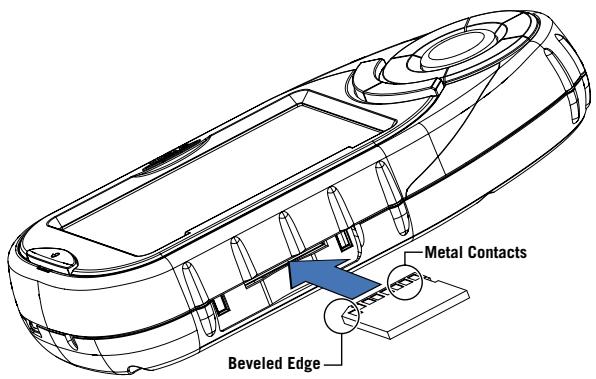
4.1.1 To Insert the SD Card:
- Peel back the rubber gasket to expose the SD card slot. Do not completely remove the rubber gasket. The SD card can only be inserted in one direction. Do not force the card into the slot.
- Insert the SD card into the slot with the metal contacts going in first and the beveled edge to the left.
- Push the SD card into the slot. You will feel slight resistance. Continue to push until you hear a click.
- Replace the rubber gasket.
Chapter 4: Secure Digital (SD) Cards
4.2 Regional SD Card Coverage
Your Magellan RoadMate comes with a pre-installed regional SD Card covering one of the geographical areas below.

Western United States
Eastern United States
Central United States
Canada
| Regional Card | Western United States | Central United States | Eastern United States | Canada |
| Region 1 | Alaska, Idaho, Oregon, Montana, Washington | Illinois, Iowa, Minnesota, Wisconsin | Florida, Georgia, Puerto Rico | |
| Region 2 | California, Hawaii, Nevada | Arkansas, Louisiana, Mississippi, Missouri, Alabama | North Carolina, South Carolina, Virginia | |
| Region 3 | Arizona, Colorado, New Mexico, Utah, Wyoming | Kentucky, Tennessee, West Virginia | Connecticut, New Jersey, New York | |
| Region 4 | Oklahoma, Texas | Indiana, Michigan, Ohio | Washington D.C., Delaware, Maryland, Pennsylvania | |
| Region 5 | North Dakota, South Dakota, Kansas, Nebraska | Maine, Massachusetts, New Hampshire, Rhode Island, Vermont |
Chapter 5: Installation
5.1 Vehicle Installation
Take care when mounting the Magellan RoadMate in your vehicle, whether using the windshield mount or another mount, that it does not obstruct the driver's view of the road. Make sure that the placement of the Magellan RoadMate and cable does not interfere with the operation of vehicle safety devices, such as air bags. You assume the risks associated with damage to your vehicle or your vehicle's occupants as a result of how you choose to mount the Magellan RoadMate.
5.1.1 Installation with the Windshield Mount
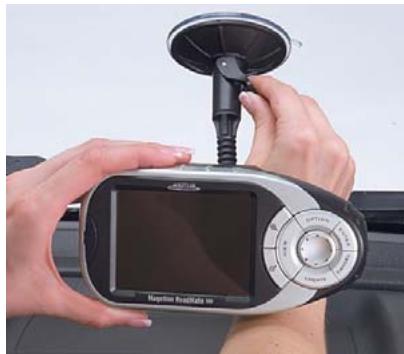
Slide the mount assembly onto the windshield mount bracket attached to the back of the unit.
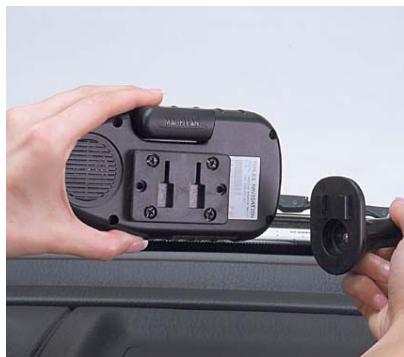
Press the windshield mount to the glass and rotate the locking dial until it clicks into place.
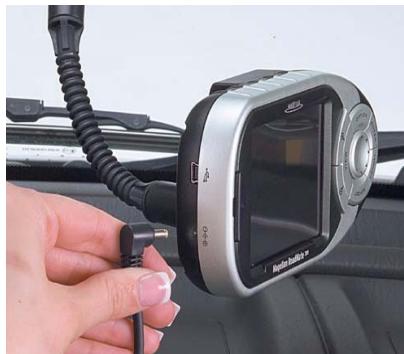
Plug the power cable into the unit.
Chapter 5: Installation
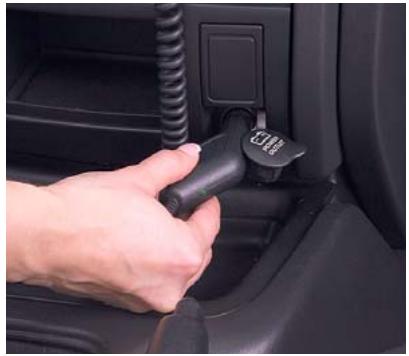
Plug the cigarette lighter connector into an appropriate 12V receptacle in your car.
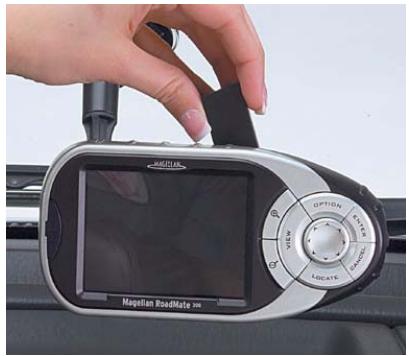
Rotate the antenna upward.
Installation is complete. You are ready to turn the Magellan RoadMate on and go.
5.1.2 Installing the External Antenna
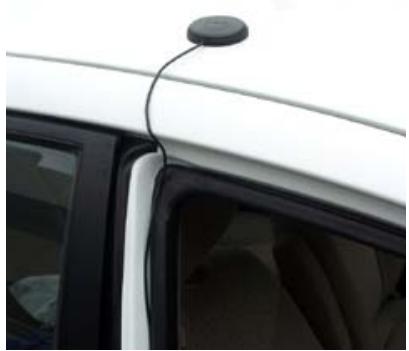
The external antenna (not included) provides faster satellite fix times and greater signal strength. Because it is mounted outside of the vehicle, it is not affected by reflective coatings on windows and has an unobstructed line of sight to the satellites.
Remove the standard antenna by rotating it completely upward.
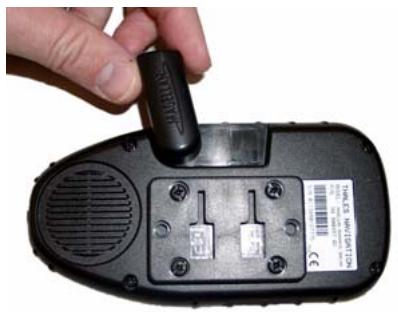
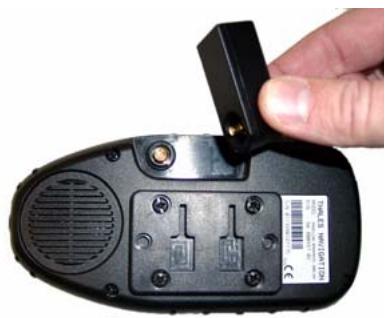
Hold the antenna at the lower portion and pull straight off the back of the unit.
Chapter 5: Installation
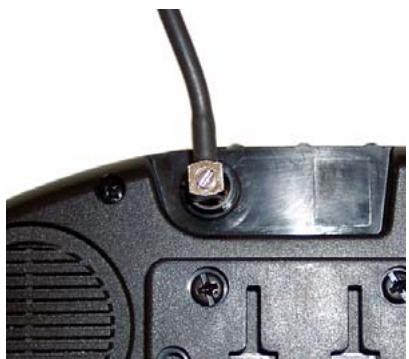
Plug the end of the external antenna into the socket on the back of the unit.
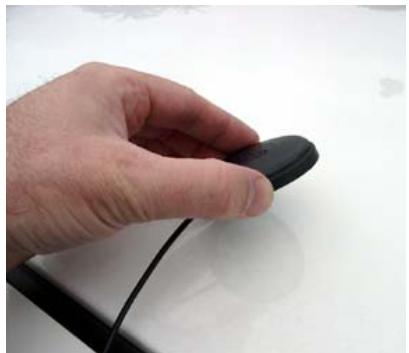
Attach the antenna to a flat portion of the roof of your vehicle. The antenna is magnetic. Do not use any adhesives to attach the antenna to your vehicle.
Route the antenna cable so it does not interfere with the operation of the vehicle.
Chapter 6: Maps and Data
6.1 Basemaps vs. Detailed Map
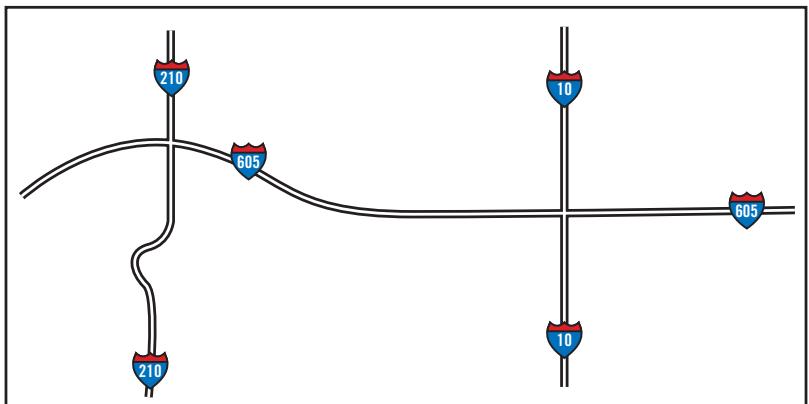
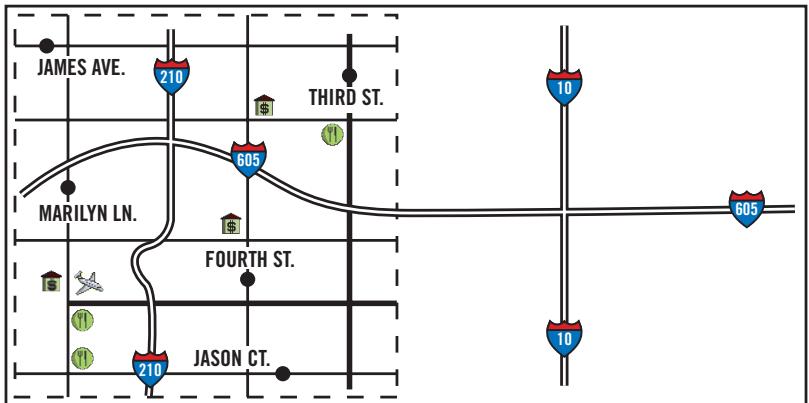
A basemap contains major map features such as highways and city centers. The basemap that is built into the Magellan RoadMate has basic detail sufficient for generally orienting oneself to a broad geographic area. The basemap is used when navigating to a general area or point on the map outside of the detailed map area covered on the preconfigured map SD card.
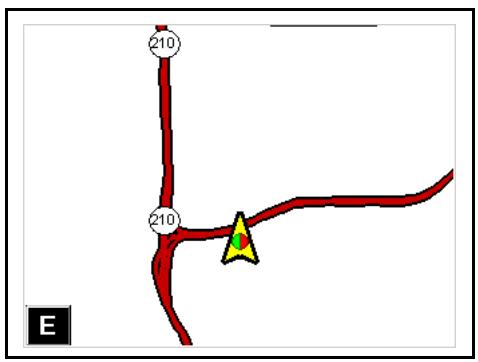
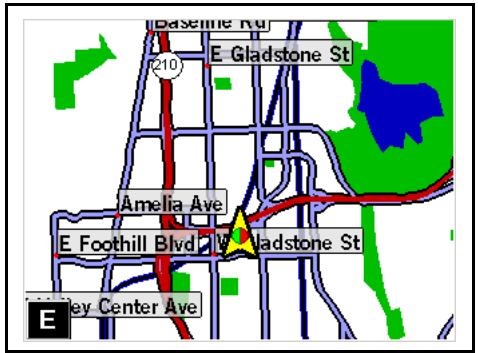
Detailed maps include all roads and highways, points of interest (POIs), geographic features, railroads, and street addresses.
6.2 Basemap Routing vs. Detailed Map Routing
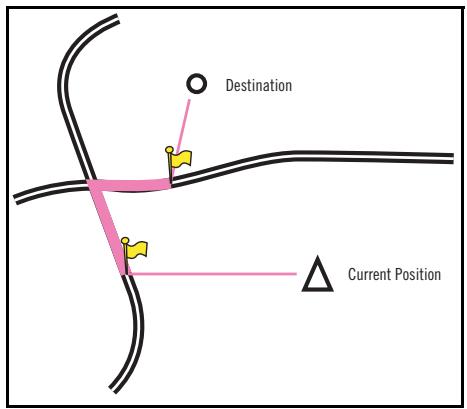
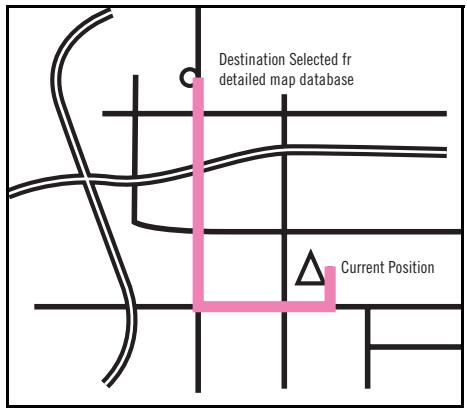
The Magellan RoadMate comes with a built-in basemap. The basemap contains highways and city centers. The basemap does not contain street address information, points of interest, or other map data (such as waterways, railroads, or parks). The Magellan RoadMate can route via the basemap to a city center or point selected on the screen using the available road data. Where there is no data, that is outside of the detailed map area covered on the preconfigured map SD card, a thin, straight line from point to point will be used with a flag indicating the start and finish of normal street routing. You will be routed from your current position via a straight line to the nearest major road or freeway on-ramp, along the freeway to the off-ramp closest to your destination, and then via straight line to your destination.
With the detailed map, you are routed using turn-by-turn guidance on all city streets and highways. Also, you have access to detailed map data and points of interest. As you can see, with the detailed map the route becomes more direct using the surface streets.
Chapter 6: Maps and Data
6.3 Routing Outside Detailed Map Coverage
If you travel outside the geographical area covered by the SD Card, you will "switch" to basemap routing. In other words, you can still route along major highways and to city centers, but you will not have access to detailed street information or POIs.
BASEMAP
BASEMAP WITH DETAILED REGION
Chapter 7: Basic Operation
7.1 Turning the Magellan RoadMate On
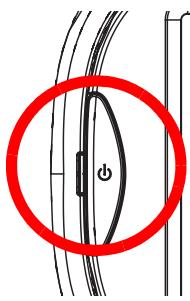
Press the Power button. The Power button is located on the left side of the unit. See "Magellan RoadMate 300R" on page 5. for button locations.
If power is properly connected, a logo screen is displayed.

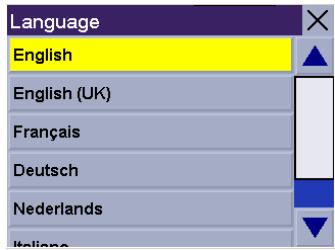
Next, you will need to select the language you wish to use for your Magellan RoadMate. The language selection will be used for menu text and audible voice prompts.
The Warning screen will appear. At the bottom of the screen, select your preferred user. The Magellan RoadMate can be personalized for three different users.

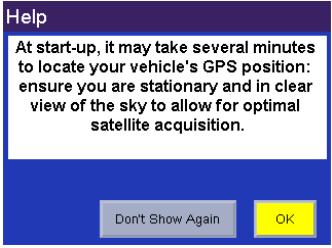
The Magellan RoadMate will display a series of help screens to guide you through the selection of map regions. Select OK to proceed to the next screen or, Select Don't Show Again to proceed to the next screen and not show the Help sequence at start-up next time.
Chapter 7: Basic Operation
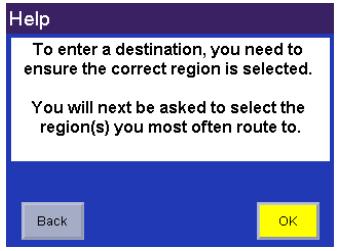
Next you will need to decide on which regions you travel within most often. Select OK to proceed to the next screen or, select Back to view the previous screen.
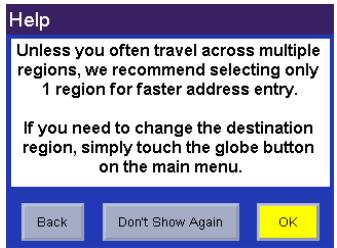
Selecting only one region will greatly speed up the time it takes to search for addresses and POIs. Select OK to proceed to the next screen or, select Back to view the previous screen. If you do not wish to view this screen each time you select a map region, select Don't Show Again.
Next, select the region(s) you most often travel within. If you often travel between states that are not contained within one region, you may want to select both regions. Select Mark All to choose all available regions, select Clear All to deselect all regions. When you have selected at least one region, select Save.
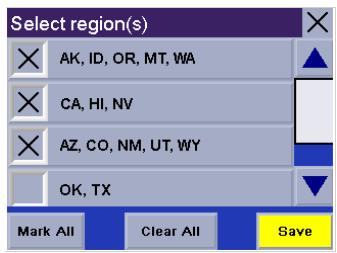
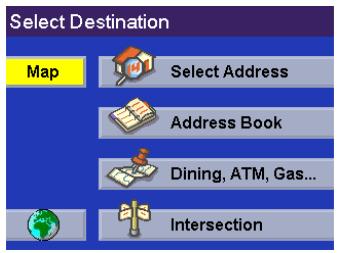
The region is active and the Select Destination screen will appear.
7.2 Using the Keypad
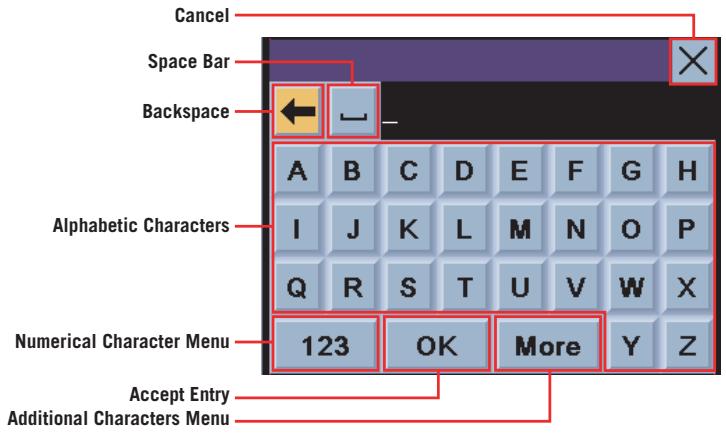
Whenever you need to input names, street addresses, etc., the Magellan RoadMate will display a keypad. Touch the screen or use the Navigation Key to input text.
Chapter 7: Basic Operation
7.2.1 Additional Characters (More)
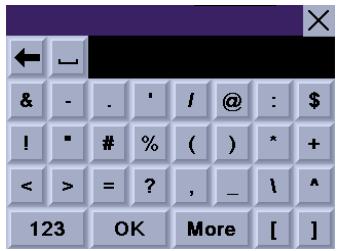
When you are entering information, you may need to add punctuation or other special characters. When available, select More to bring up the additional characters.
7.2.2 Numerical Characters (123)
You may also need to add numbers to your text. When available, select 123 to bring up the numeric keypad.
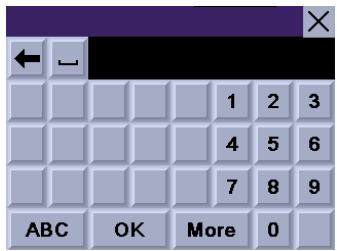
7.2.3 Using QuickSpell® and AutoFill™
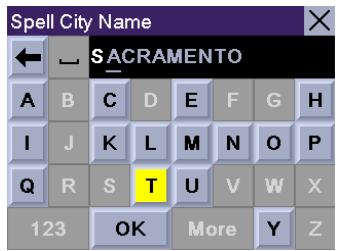
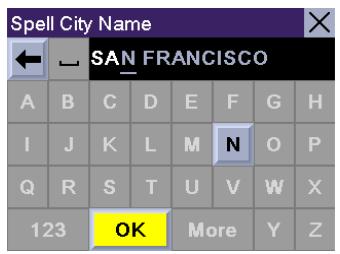
The Magellan RoadMate uses QuickSpell technology to provide you with the fastest method possible to enter characters. QuickSpell eliminates the possibility of a misspelled word or looking for a city or street that is not in the database. As you begin entering characters, the QuickSpell feature of the Magellan RoadMate dims out those characters that are not available, thereby speeding up the process of entering data.
With AutoFill, as you enter characters the next name in the database matching the characters entered is displayed in the speller.
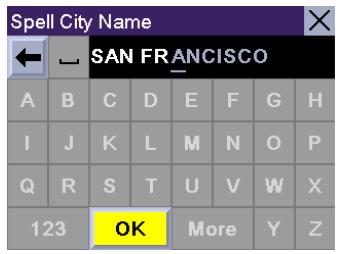
Suppose that you need to input the name of a city, in this case, San Francisco.
Select "S". Also as you enter characters, the next city in the database matching the characters entered will show in the speller.
Chapter 7: Basic Operation
Continue to enter characters. When you have entered enough characters to match the desired city, it will show in the speller. OK.
However, because the city search lists all cities in the database matching the characters entered, it is possible to select a city that does not contain the street selected previously.
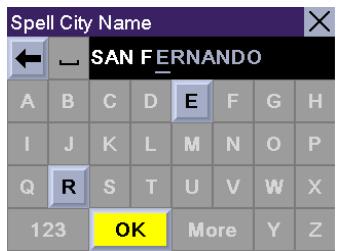
In this case, you can either select Street to re-enter the street name; select City to choose only form cities that contain the desired street; or choose Back to continue spelling the city name. For this example select City.

Enter the name of the desired city. Notice this time you enter fewer characters to match the desired city in the speller.
7.3 Help with Address Entry
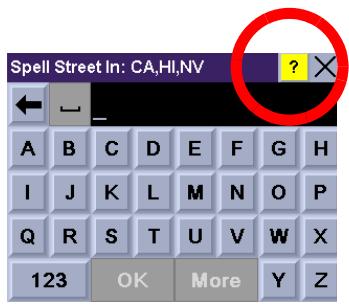
When entering street names, please follow these simple guidelines to help you find your selection:
- Do not enter prefixes such as "N" or "North".
- Do not enter the street type such as "Ave." or "Avenue" except in some cases where the street type is included before the street name (e.g. "Via Calle", "Avenue 378", or "Rue Andre").
- When entering a numbered street (e.g. "4th Street"), use the numeric keypad to enter "4" and go back to the alpha keypad to enter "th".
- For streets with multiple words such as "Overland Heights", you must enter the first word. Entering the word "Heights" will not return the desired street.
- When entering street names with a hyphen, replace the hyphen with a space.
- For common street names, it is recommended that you enter the entire street name to further narrow down the choices.
- If the city you are searching for is called "Town of [name]" (e.g. "Town of Brooklyn"), enter the name of the town followed by "Town of" (e.g. you would enter "Brooklyn Town of"). For townships, e.g. "Middletown Township", you would enter "Middletown Twp".
Chapter 8: Selecting Destinations
Select Address
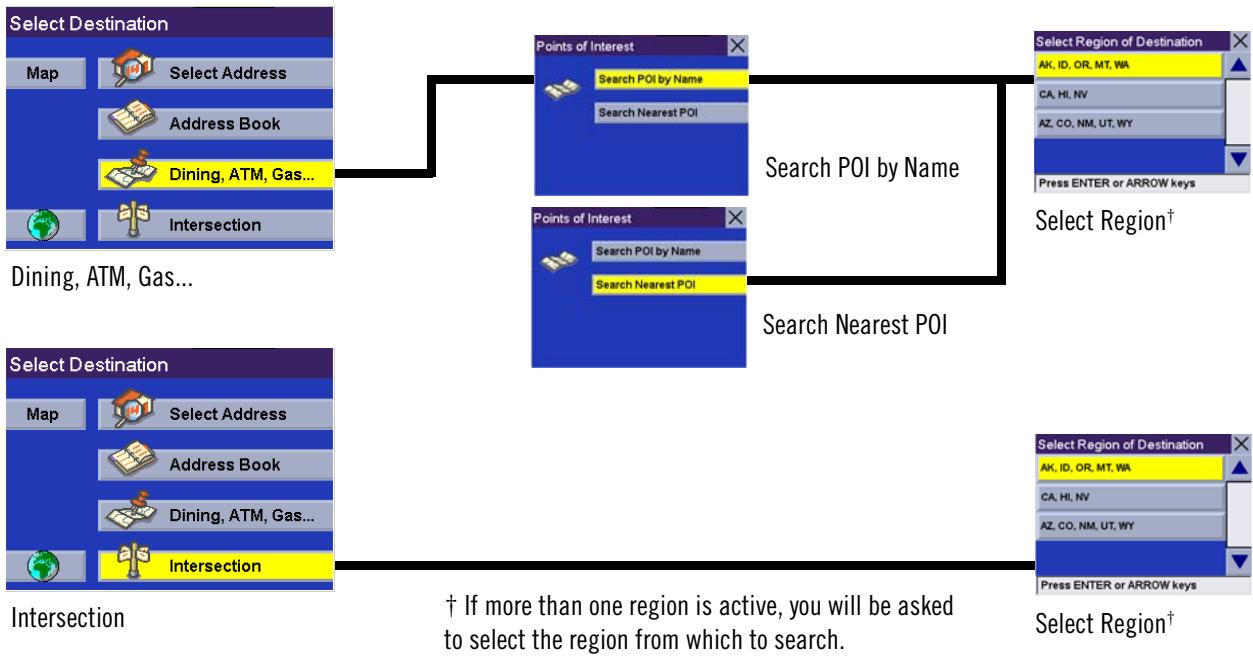
Chapter 8: Selecting Destinations
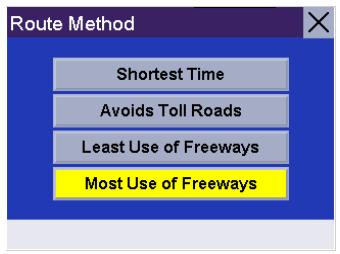
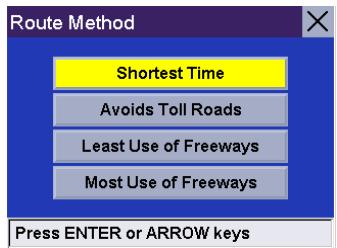
8.1 Choosing the Route Method
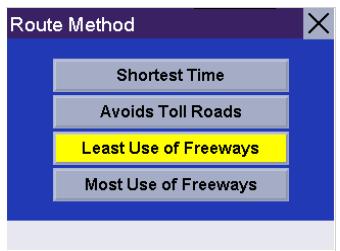
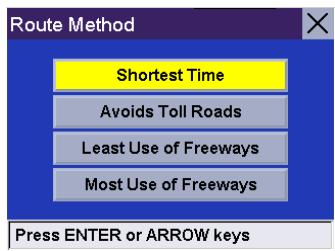
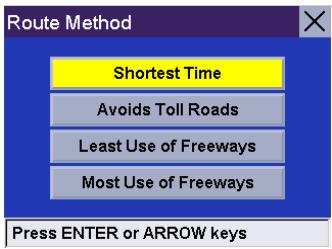
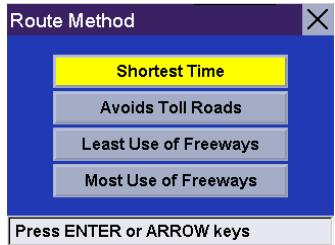
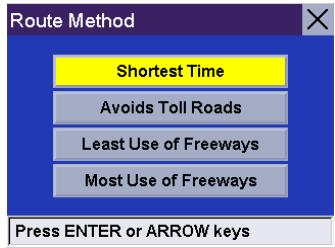
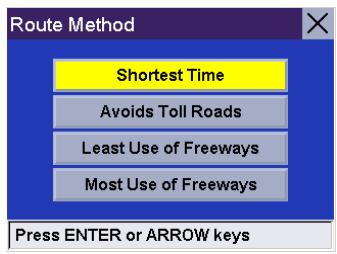
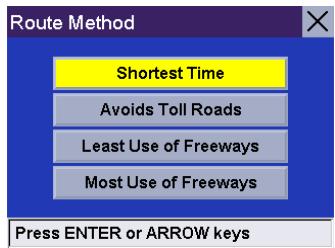
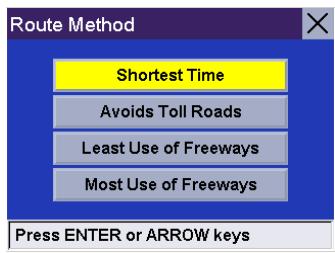
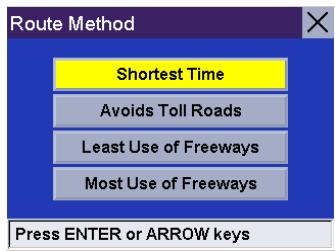
Every route is calculated based on the Route Method criteria selected. Every time a new destination is selected, the Magellan RoadMate prompts you for the method that will be used to calculate the route.
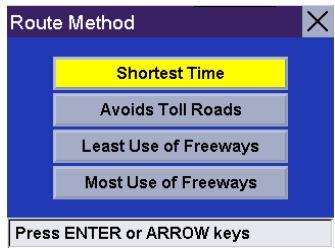
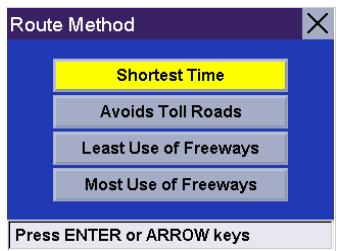
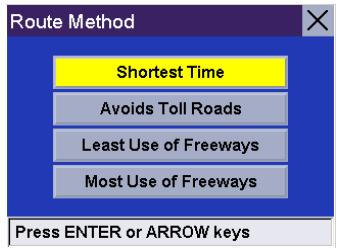
Shortest Time: This selection calculates a route that should take the least amount of time using known speed limits, streets, and other information in the database. Other factors such as traffic conditions, road closures, and emergency activity are not factors in the calculation of shortest time.
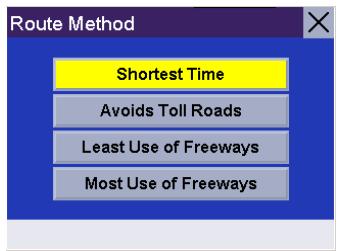
Avoid Toll Roads: This option calculates the route by excluding known toll roads from the calculation whenever possible. This option may not reflect the shortest time.
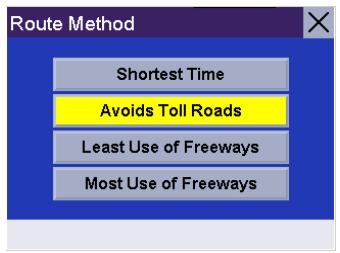
Least Use of Freeways: This selection calculates the route by avoiding freeways whenever possible.
Most Use of Freeways: This selection calculates the route by using freeways as much as possible.
8.2 Changing the Route Method
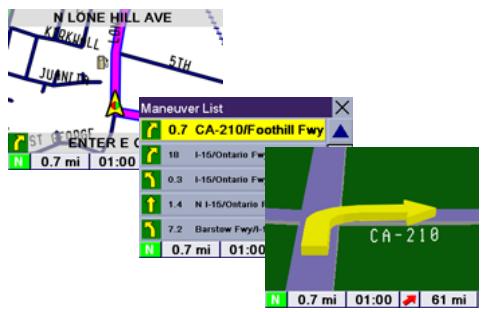
While viewing the Map screen, the Maneuver List screen, or the TrueView 3D screen, press the Cancel button.
Chapter 8: Selecting Destinations
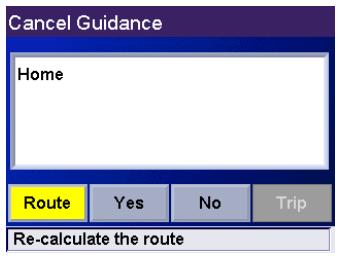
Select Route.
Select the new Route Method.
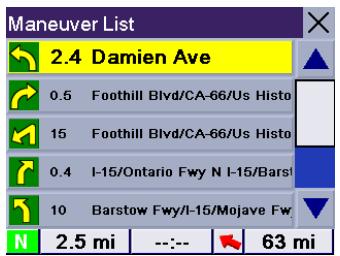
The route will be re-calculated using the new Route Method chosen and the Map screen will be displayed. Press the View button to see the Maneuver List with the new route.
8.3 Cancelling a Planned Route
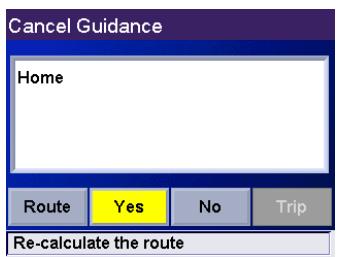
While viewing the Map screen, the Maneuver List screen, or the TrueView 3D screen, press the Cancel button.
Select Yes to cancel the route and display the Select Destination screen.
Chapter 8: Selecting Destinations
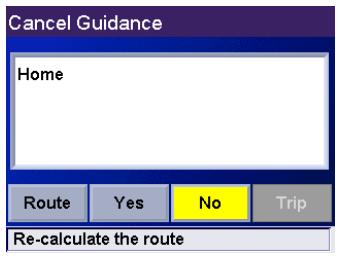
Select No returns the display to the last viewed screen.
8.4 Detouring from the Planned Route
If you detour from the calculated route, the Magellan RoadMate will get you back on course in one of two ways:
- If you detour from the calculated route to stop at a gas station or a convenience store, and the unit shuts off as you turn off the car, or you turn off the unit manually, when you return to your vehicle and the unit is turned back on, you are presented with a screen asking if you want to resume your route. Selecting "Resume" causes the Magellan RoadMate to recalculate the route using the same destination as before, selecting "Cancel" clears the route and displays the Select Destination screen.
- If you detoured from the calculated route due to a traffic jam or construction, the Magellan RoadMate will automatically recalculate the route to your destination based on your new location.
By default, the Magellan RoadMate will continue to recalculate the route as long as you choose to keep it active.
8.5 Excluding a Maneuver in a Planned Route
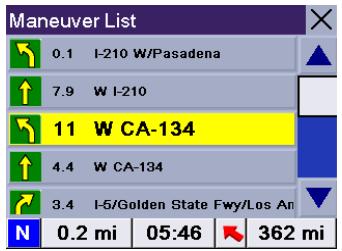
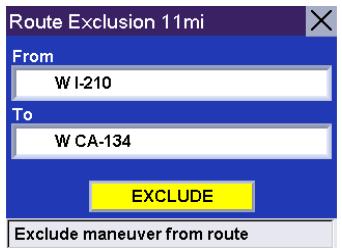
While traveling or setting up your destination, you may find it necessary to exclude one of the maneuvers in the Maneuver List. This could be due to an accident or street maintenance you want to avoid. The Magellan RoadMate provides you with tools to select a specific maneuver, exclude it from the planned route, and recalculate the route when possible.
Within an active planned route and while viewing the Guidance screen, press View.
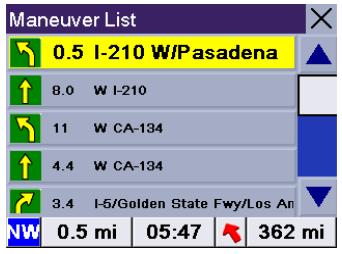
Select the maneuver instruction to be excluded.
Chapter 8: Selecting Destinations
The details for the maneuver are displayed. Select Exclude.
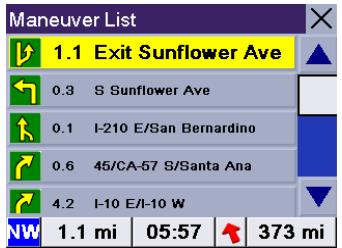
The trip will be re-calculated, excluding the maneuver selected. This calculation is done using the same Route Method that was chosen when the destination was selected.
8.6 Accessing Regions
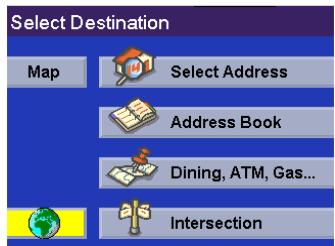
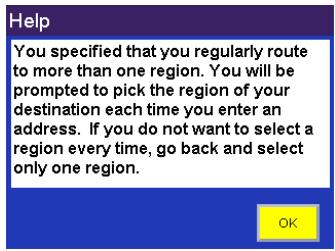
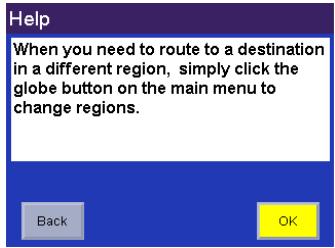
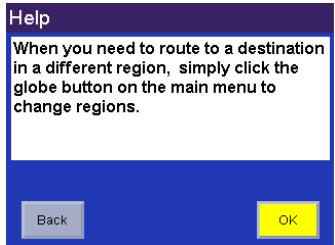
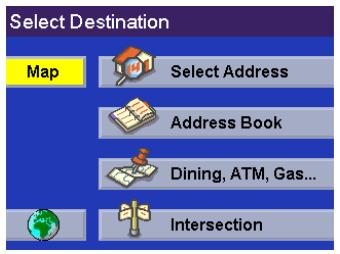
When you first start-up your Magellan RoadMate, you were asked to select a default region. This region is one you travel within most often. By having only one region active, the time it takes to search for an address is greatly decreased. If you have selected more than one active region, when you search for an address, you will be asked to narrow down the search by selecting which active region the address is in. If the address you are searching for is not within any active region, you can select the Globe button to activate the region you wish to search from.
Select the Globe.
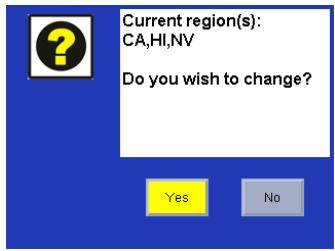
A dialog box will appear with the active region status. Select Yes.
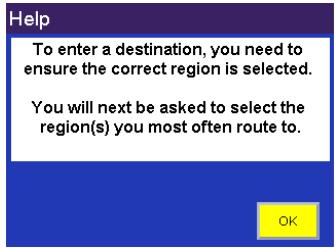
Next you will need to decide on which regions you travel within most often. Select OK to proceed to the next screen.
Chapter 8: Selecting Destinations
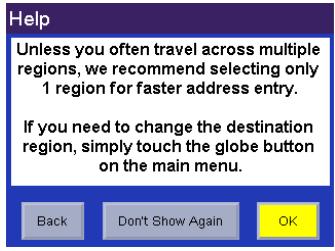
Selecting only one region will greatly speed up the time it takes to search for addresses and POIs. Select OK to proceed to the next screen or, select Back to view the previous screen. If you do not wish to view this screen each time you select a map region, select Don't Show Again.
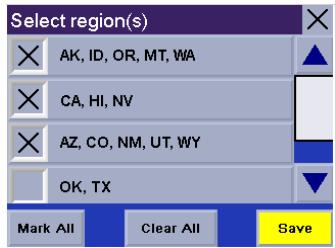
Select the region you wish to activate. Select Mark All to choose all available regions, select Clear All to deselect all regions. When you have selected at least one region, select Save.
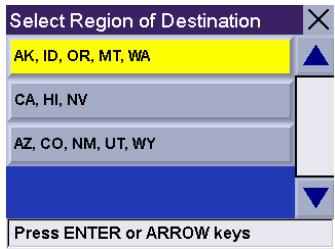
If you select more than one region to activate, you will be prompted to select the region when searching for an address. Select OK.
Select OK.
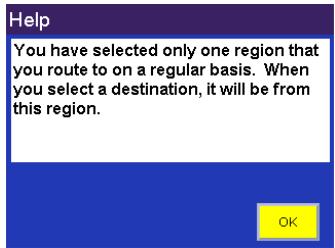
If you select only one region to make active, all address and POI searches will be from this region.
Select OK.
Chapter 8: Selecting Destinations
The region is active and the Select Destination screen will appear.
8.7 Selecting a Destination Using "Select Address"
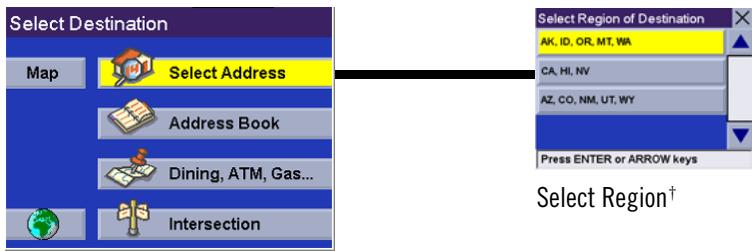
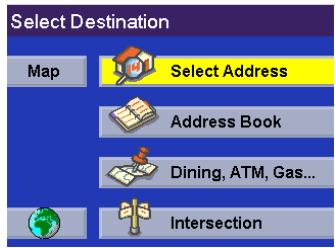
A destination can be created by entering the street address that you want to go to. This address is not automatically added to your Address Book but is saved to your Previous Destination list (which is part of the address book menu) if you have routed to it. From the Select Destination screen, select Select Address.
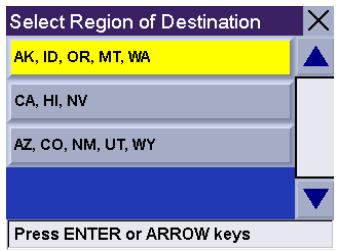
If only one region is active, the search will be conducted from that region. If more than one region is active, you will be asked to select the region from which to search.
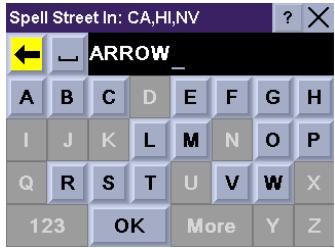
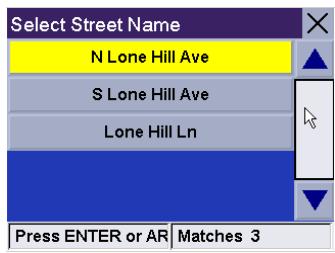
Enter the base name for the street. For example, if you are searching for "Overland Court" you would enter "OVERLAND". As you type, the AutoFill will show the next possible match from the database. Select OK. For additional help with entering street names, see "Help with Address Entry" on page 18.
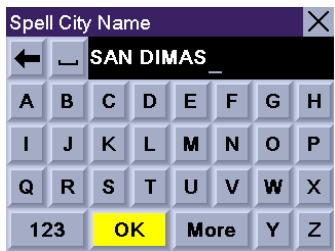
Next, if the street you are looking for is within two to five cities, select the desired city from the list. If the desired street is within more than six cities, you will need to narrow down your search further by entering the city name. Again, as you type, AutoFill will display the next possible match. Select OK.
Chapter 8: Selecting Destinations
Enter the street address. The acceptable range of numbers is displayed at the top of the screen. If you do not know the exact address, just select Done and the Magellan RoadMate will route you to the lowest number in the range. When an acceptable street address has been entered, select Done to continue

Select the desired Route Method.
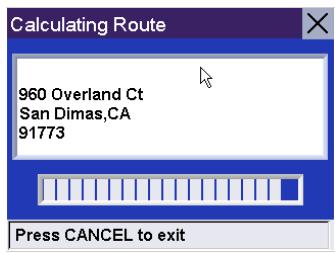
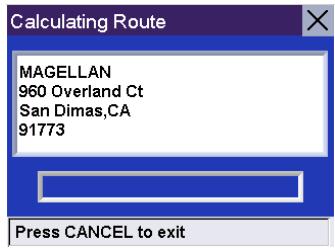
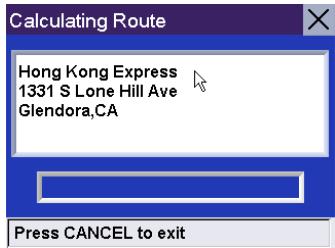
The Magellan RoadMate will calculate the route. When the calculations are complete, the Map screen will be displayed
8.8 Selecting a Destination Using "Address Book"
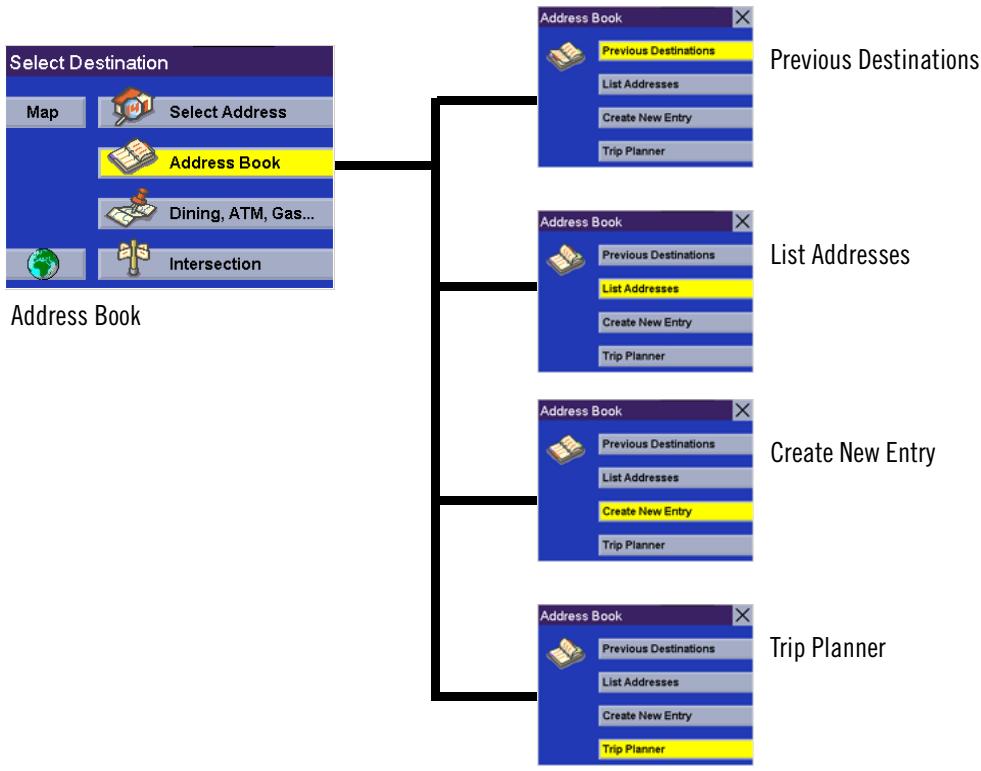
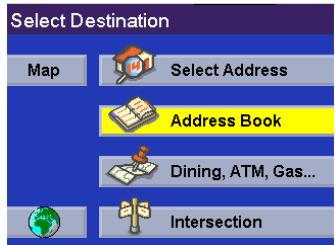
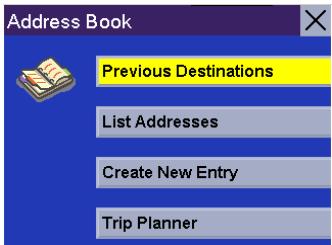
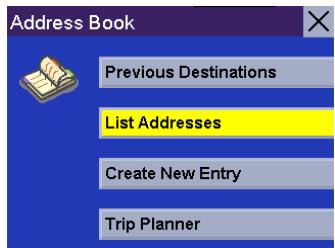
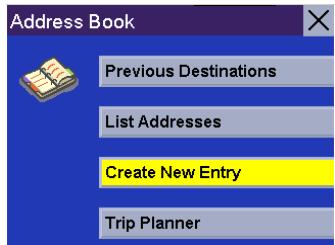
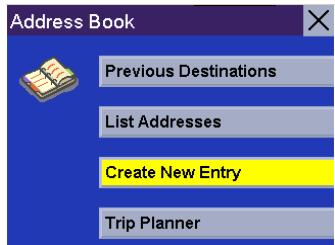
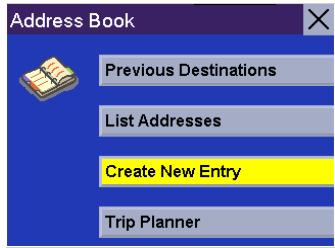
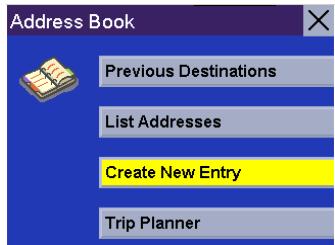
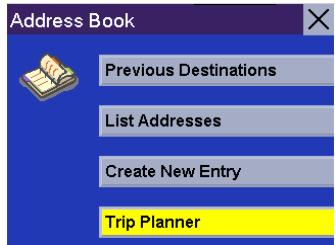
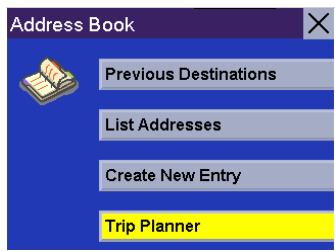
The Address Book can store up to 200 addresses for each of the three users. When you select "Address Book" you are given four options. Selecting "Previous Destinations" lets you select from a list of the last 50 destinations you have routed to with the option of saving them to your address book. "List Addresses" displays a list of all the addresses you have stored in your Address Book. "Create New Entry" lets you create a new address and store it in your address book. "Trip Planner" lets you select two or more addresses from your Address Book to route to in sequence.
8.8.1 Previous Destinations
8.8.1.1 Routing to A Previous Destination
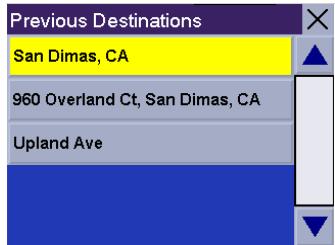
From the Select Destination screen, select Address Book., then select Previous Destinations.

Chapter 8: Selecting Destinations
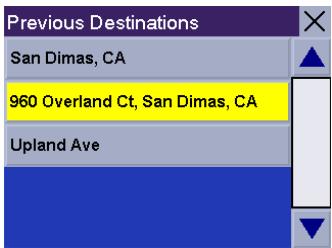
Select from the list of previous destinations.
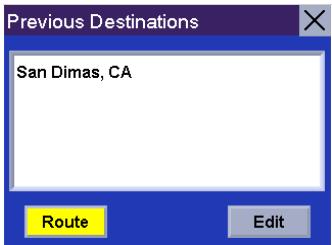
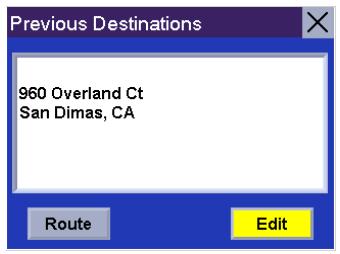
Select Route to be routed to the selected city.
Select the desired Route Method.
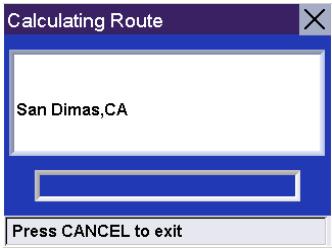
The Magellan RoadMate will calculate the route. When the calculations are complete, the Map screen will be displayed
8.8.1.2 Saving a Previous Destination to your Address Book
From the Select Destination screen, select Address Book, then select Previous Destinations.
Select the address that you wish to save.
Chapter 8: Selecting Destinations
To save this destination to the Address Book, select Edit.
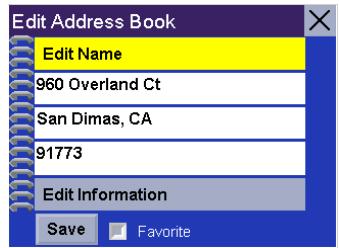
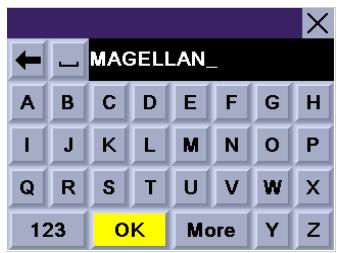
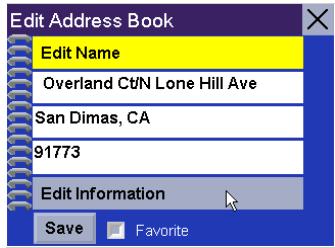
The top line (Name) and the bottom line (Information) can be edited. The address cannot be changed. Select the line you want to modify.
Enter the desired text. Select OK.
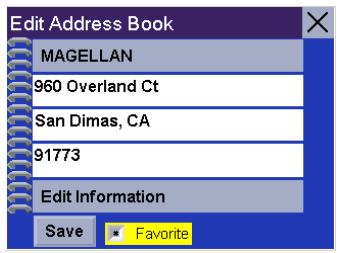
You can also add this address to your Favorites list. Select Favorites.
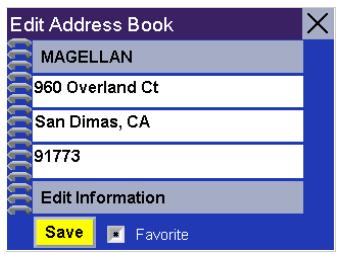
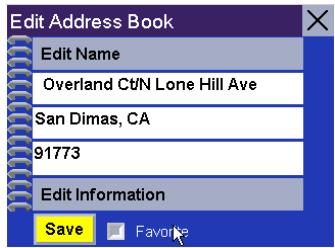
When you are satisfied with the information, select Save.
The address is saved to the Address Book. Press Cancel to return to the Previous Destinations screen.
8.8.2 List Addresses
8.8.2.1 List All
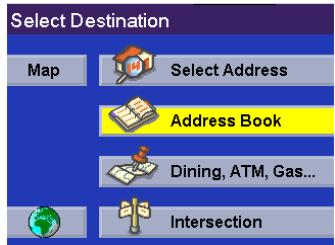
From the Select Destination screen, select Address Book, then select List Addresses.
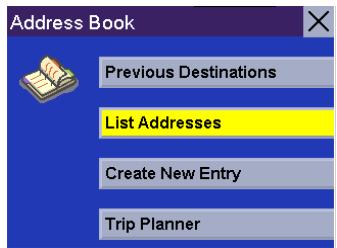
Chapter 8: Selecting Destinations
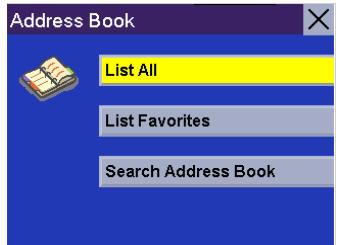
Select List All.
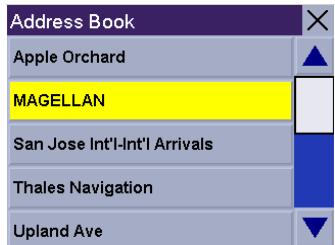
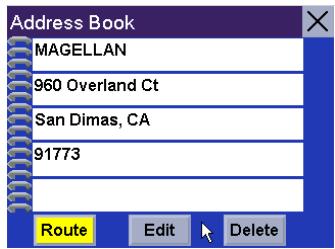
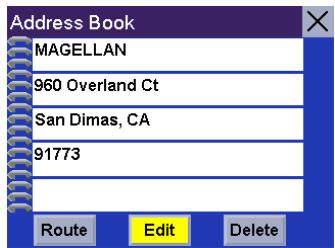
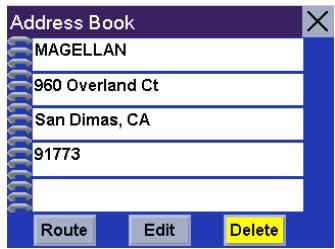
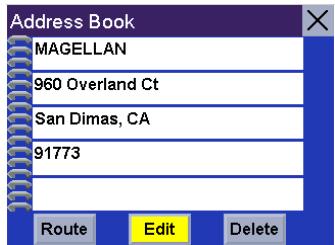
Select the destination from the list of addresses in the Address Book and press Enter. You will then have the option of routing to, editing, or deleting this address.
Route - Select Route.
Select the desired Route Method.
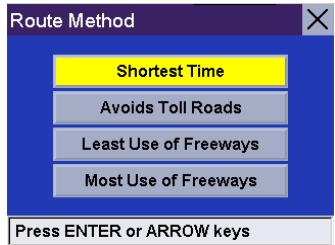
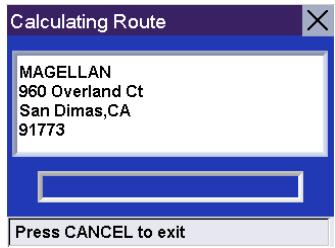
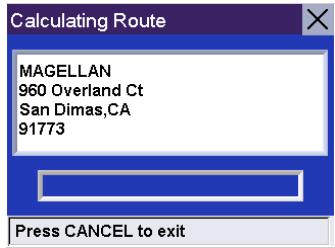
The Magellan RoadMate will calculate the route. When the calculations are complete, the Map screen will be displayed.
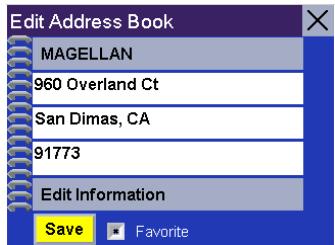
Edit - Select Edit.
Chapter 8: Selecting Destinations
Click on either the top line (name) or the bottom line (information) and enter the desired text.
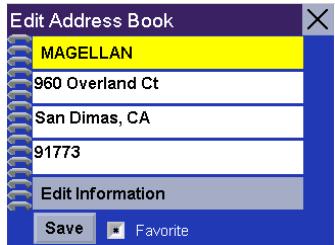
Select Save to save the changes and return to the Address Book screen.
Delete - Select Delete.
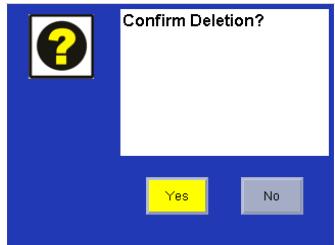
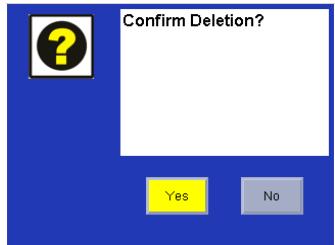
A dialog box will appear prompting you to confirm the deletion. Select Yes.
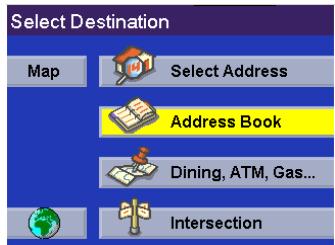
The address has been deleted from your address book and you are returned to the Select Destination screen.
8.8.2.2 List Favorites
From the Select Destination screen, select Address Book, then select List Addresses.
Chapter 8: Selecting Destinations
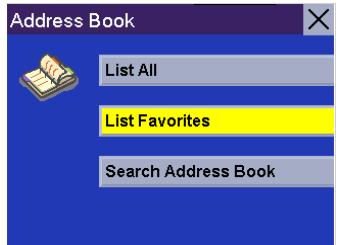
Select List Favorites.
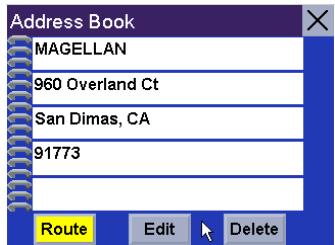
All of the addresses marked as favorites will be displayed.
Route - Select Route.
Select the desired Route Method.
The Magellan RoadMate will calculate the route. When the calculations are complete, the Map screen will be displayed.
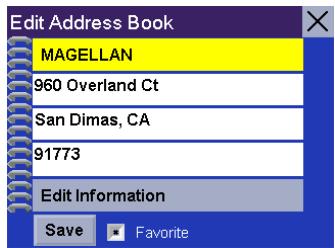
Edit - Select Edit.
Click on either the top line (name) or the bottom line (information) and the desired text.
Chapter 8: Selecting Destinations
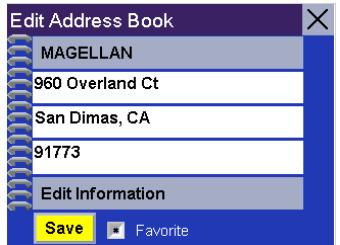
Select Save to save the changes and return to the address screen.
Delete - Select Delete.
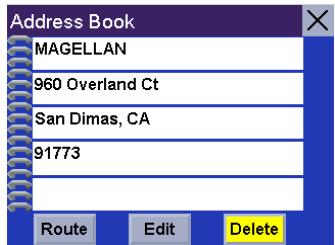
A dialog box will appear prompting you to confirm the deletion. Select Yes.
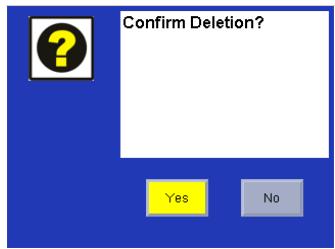
The address has been deleted from your address book and you are returned to the Select Destination screen.
8.8.2.3 Search Address Book
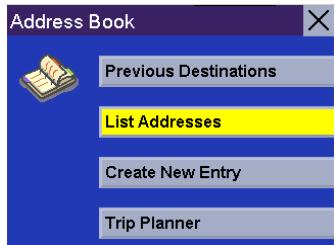
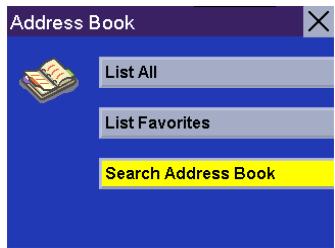
From the Select Destination screen, select Address Book, then select List Addresses.
Select Search Address Book.
Chapter 8: Selecting Destinations
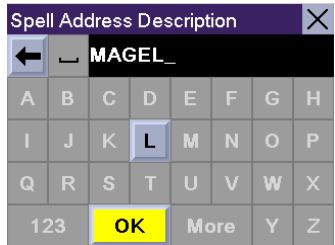
Enter the name you are searching for as it appears in your address book. When you have finished, select OK
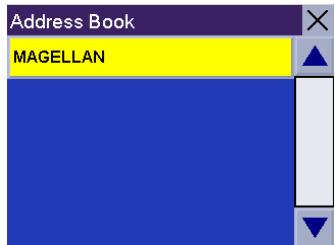
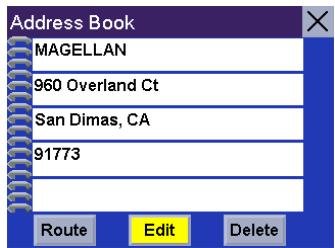
A list of addresses matching your criteria is shown. Select the address you wish to use. You will then have the option of routing to, editing, or deleting this address.
Route - Select Route.

Select the desired Route Method.
The Magellan RoadMate will calculate the route. When the calculations are complete, the Map screen will be displayed.
Edit - Select Edit.
Chapter 8: Selecting Destinations
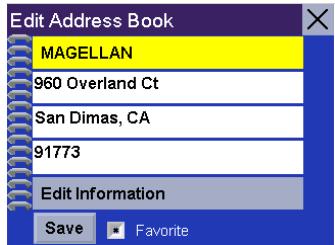
Click on either the top line (name) or the bottom line (information) and the desired text.
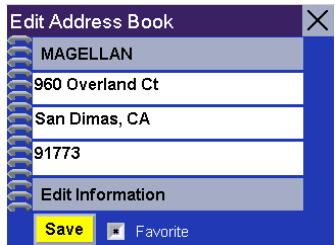
Select Save to save the changes and return to the address screen.
Delete - Select Delete.
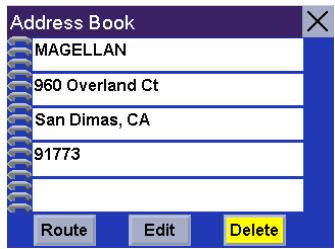
A dialog box will appear prompting you to confirm the deletion. Select Yes. The address has been deleted and you are returned to the Address Book screen.
8.8.3 Create New Entry
8.8.3.1 Select on Map
From the Select Destination screen, select Address Book, then select Create New Entry.
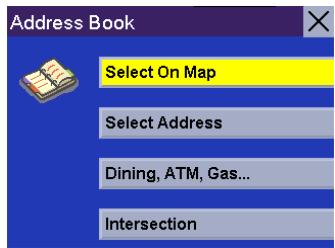
Select Select on Map.
Chapter 8: Selecting Destinations
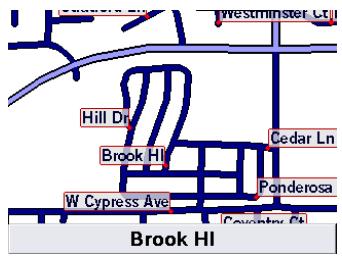
Touch the screen and drag the map to a point near to the desired address. Press the Enter key.
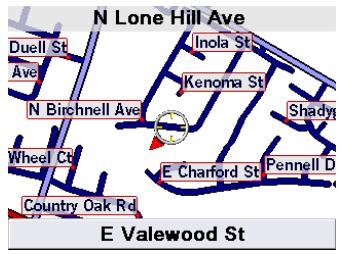
A dialog box will appear prompting you to edit the information. Select Edit Name.
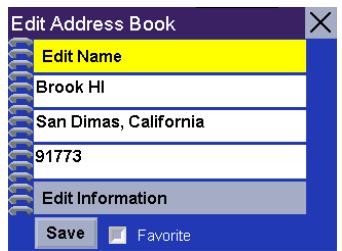
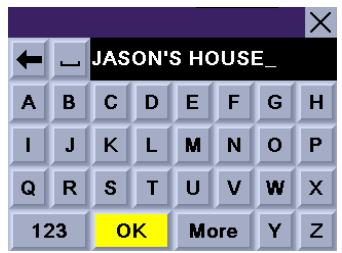
Enter a name for the address. When you are finished, select OK.
Select Save.
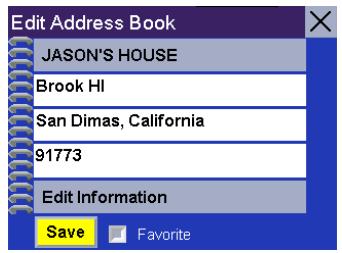
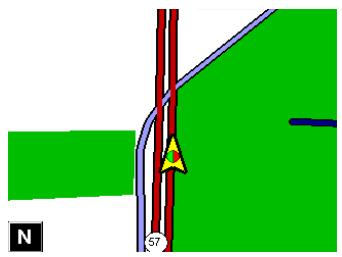
The location is saved to your address book and you are returned to the map screen.
Press Cancel to resume normal routing.
Chapter 8: Selecting Destinations
8.8.3.2 Select Address
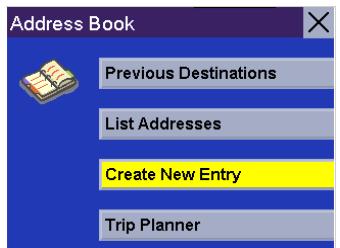
From the Select Destination screen, select Address Book, then select Create New Entry
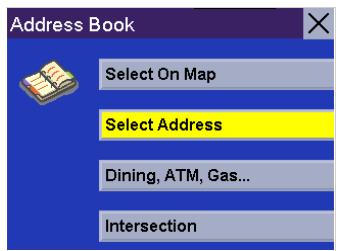
Select Select Address.
If only one region is active, the search will be conducted from that region. If more than one region is active, you will be asked to select the region from which to search.
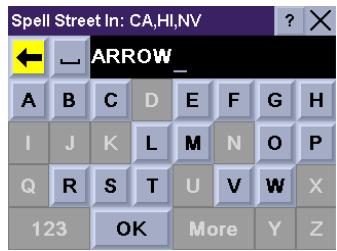
Enter the base name for the street. For example, if you are searching for "Overland Court" you would enter "OVERLAND". As you type, the AutoFill will show the next possible match from the database. Select OK. For additional help with address entry, see "Help with Address Entry" on page 18.
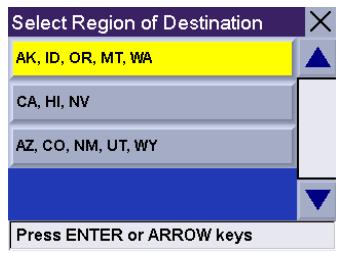
Next, if the street you are looking for is within two to five cities, select the desired city from the list. If the desired street is within six cities or more, you will need to narrow down your search further by entering the city name. Again, as you type, AutoFill will display the next possible match. Select OK.
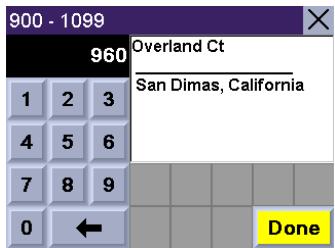
Enter the street address. The acceptable range of numbers is displayed at the top of the screen. If you do not know the exact address, just select Done and the Magellan RoadMate will route you to the lowest number in the range. When an acceptable street address has been entered, select Done to continue

Chapter 8: Selecting Destinations
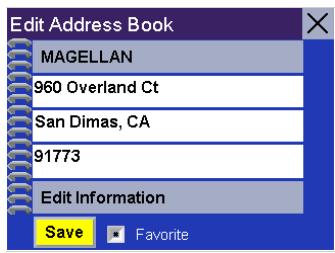
A dialog box will appear prompting you to edit the information. Select Edit Name.
Enter a name for the address. When you are finished, select OK.
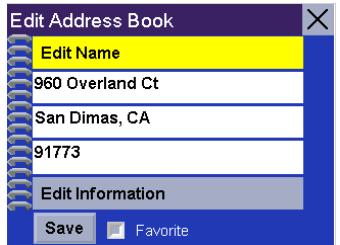
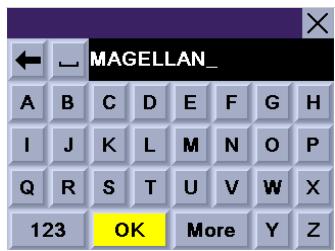
If you wish, you can select Favorite to add this address to your Favorites list. Select Save.
You are returned to the Address Book screen.
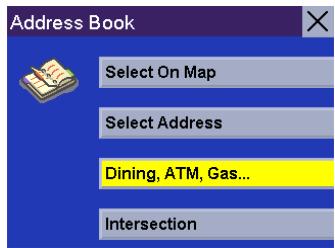
8.8.3.3 Dining, ATM, Gas...
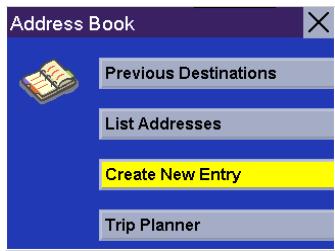
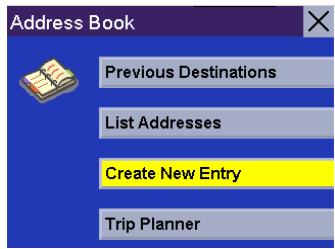
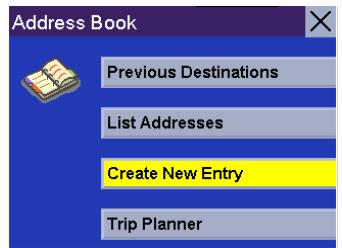
From the Select Destination screen, select Address Book, then select Create New Entry
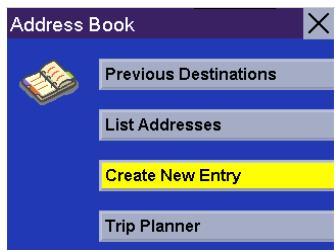
Select Dining, ATM, Gas....
Chapter 8: Selecting Destinations
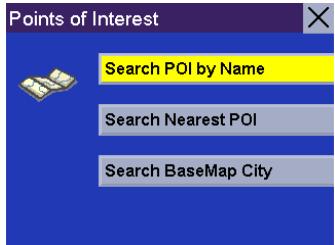
8.8.3.3.1 Search POI by Name
This function allows you to search for a specific point of interest and save it to your address book. Select Search POI by Name.
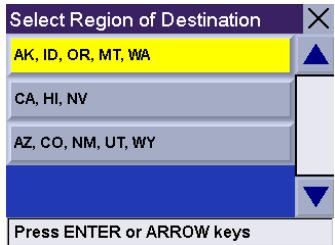
If only one region is active, the search will be conducted from that region. If more than one region is active, you will be asked to select the region from which to search.
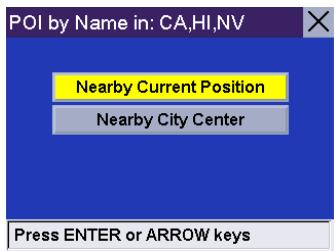
8.8.3.3.1.1 Nearby Current Position
This function allows you to search for the named POI nearest to your present position starting with the closest. Select Nearby Current Position.
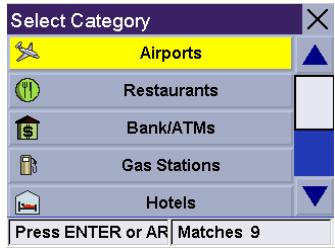
Select the POI category.
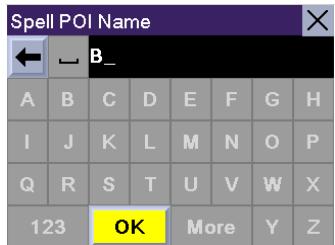
Enter the first few characters for the POI name. After you have selected the characters, select OK.
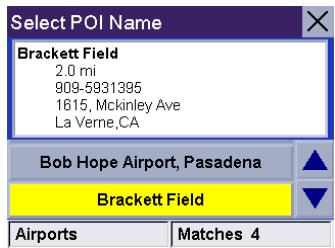
Use the navigation key to scroll the list up or down and select the desired POI.
Chapter 8: Selecting Destinations
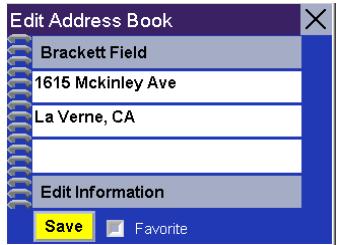
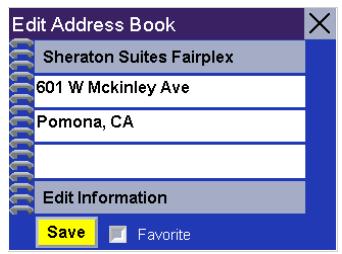
A dialog box will appear prompting you to edit the information. You can choose to keep the default name. If you wish, you can select Favorite to add this address to your Favorites list. Select Save.
You are returned to the Address Book screen.
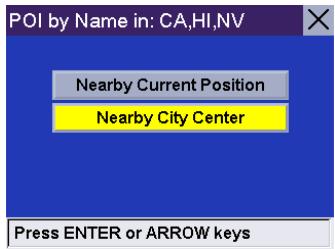
8.8.3.3.1.2 Nearby City Center
This function allows you to search for the named POI closest to the geographical center of a city within the region you selected. Select Nearby City Center.
Enter the first few characters for the city name. After you have selected the characters, select OK.
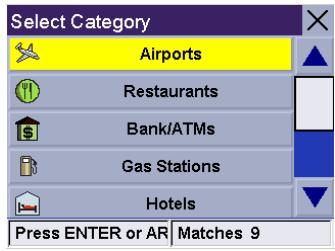
Select the POI category.
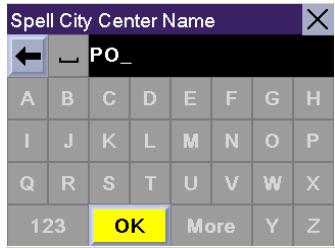
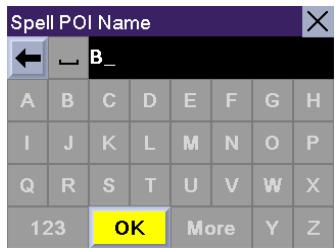
Enter the first few characters for the POI name. After you have selected the characters, select OK.
Chapter 8: Selecting Destinations
Use the navigation key to scroll the list up or down and select the desired POI.
A dialog box will appear prompting you to edit the information. You can choose to keep the default name. If you wish, you can select Favorite to add this address to your Favorites list. Select Save.
You are returned to the Address Book screen.
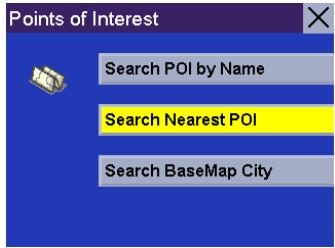
8.8.3.3.2 Search Nearest POI
This function lets you search for the closest point of interest. Select Search Nearest POI.
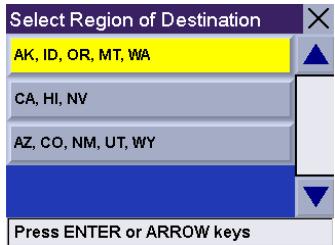
If only one region is active, the search will be conducted from that region. If more than one region is active, you will be asked to select the region from which to search.
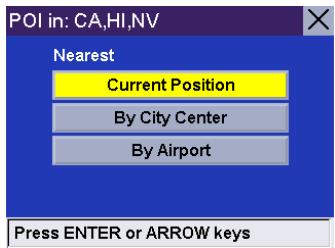
8.8.3.3.2.1 Current Position
This option lets you find a specific point of interest closest to where you are at the time. Select Current Position.
Chapter 8: Selecting Destinations
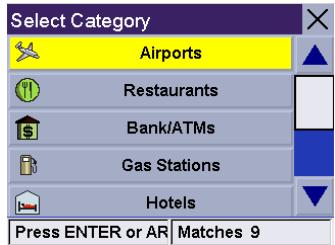
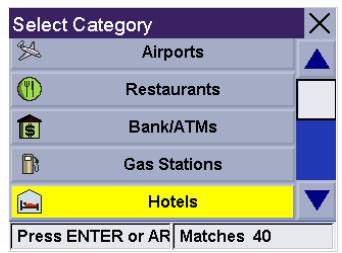
Select the POI category (if available, select the sub-category).
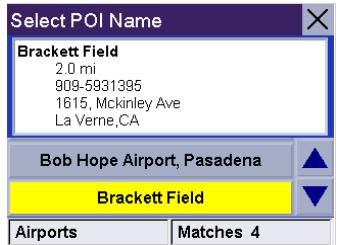
Use the navigation key to scroll the list up or down and select the desired POI.
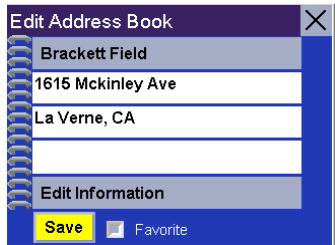
A dialog box will appear prompting you to edit the information. You can choose to keep the default name. If you wish, you can select Favorite to add this address to your Favorites list. Select Save.
You are returned to the Address Book screen.
8.8.3.3.2.2 By City Center
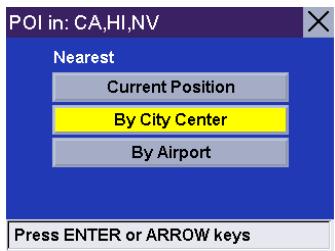
This option lets you find a specific point of interest closest to a chosen city center within the region you selected. Select By City Center.
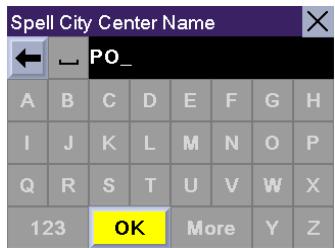
Enter the first few characters for the city name. After you have selected the characters, select OK.
Chapter 8: Selecting Destinations
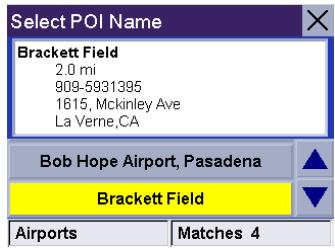
Use the navigation key to scroll the list up or down and select the desired city.
Select the POI category (if available, select the sub-category).
Use the navigation key to scroll the list up or down and select the desired POI.
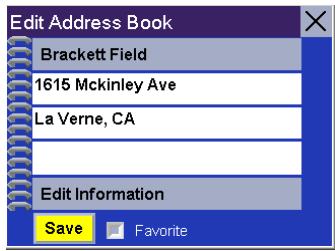
A dialog box will appear prompting you to edit the information. You can choose to keep the default name. If you wish, you can select Favorite to add this address to your Favorites list. Select Save.
You are returned to the Address Book screen.
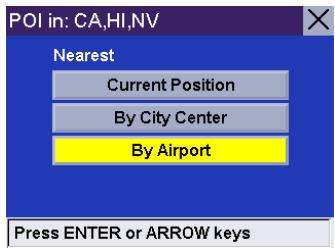
8.8.3.3.2.3 By Airport
This option lets you find a specific point of interest closest to a chosen airport within the region you selected. Select By Airport.

Chapter 8: Selecting Destinations
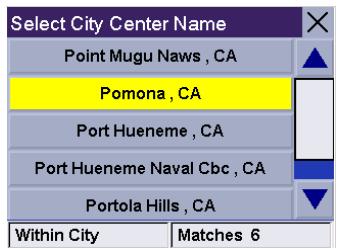
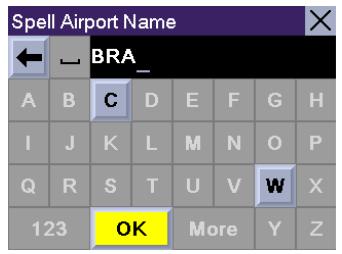
Enter the first few characters for the Airport name. After you have selected the characters, select OK.
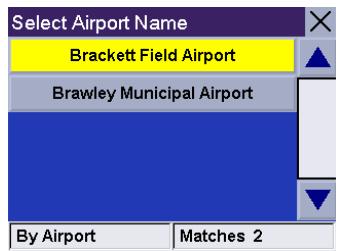
Use the navigation key to scroll the list up or down and select the desired Airport.
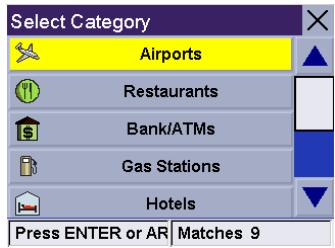
Select the POI category (if available, select the sub-category).
A list of available POIs that match your criteria is shown. Use the navigation key to scroll the list up or down and select the desired POI.
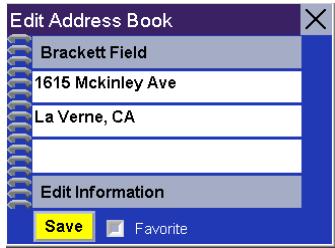
A dialog box will appear prompting you to edit the information. You can choose to keep the default name. If you wish, you can select Favorite to add this address to your Favorites list. Select Save.
You are returned to the Address Book screen.

Chapter 8: Selecting Destinations
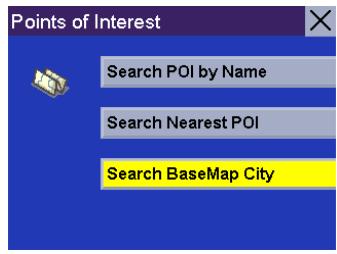
8.8.3.3.3 Search Basemap City
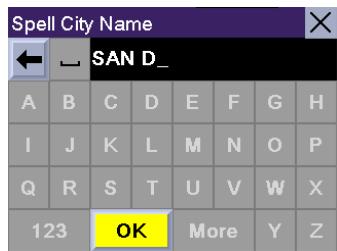
You can select a city center on the basemap and add it to your address book. Select Search Basemap City.
Enter the first few characters for the city. After you have selected the characters, select OK.
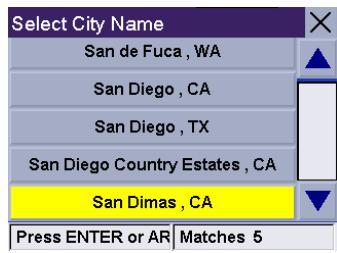
Use the navigation key to scroll the list up or down and select the desired city.
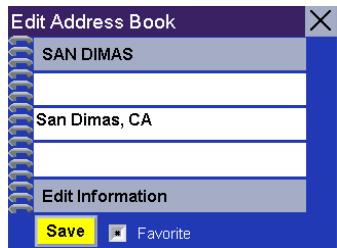
A dialog box will appear prompting you to edit the information. Select Edit Name.
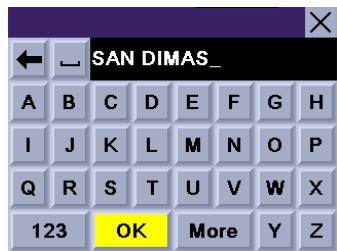
Enter a name for the address. When you are finished, select OK.
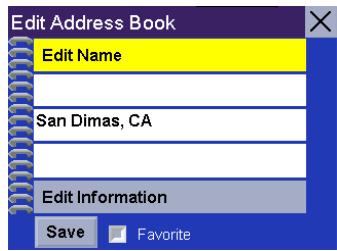
If you wish, you can select Favorite to add this address to your Favorites list. Select Save.
Chapter 8: Selecting Destinations
You are returned to the Address Book screen.
8.8.3.4 Intersection
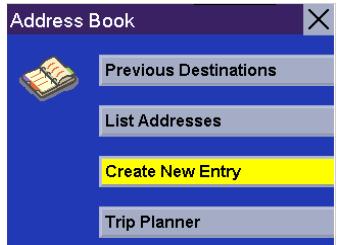
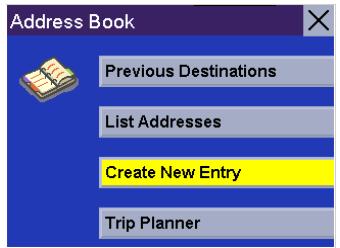
From the Select Destination screen, select Address Book, then select Create New Entry
Select Intersection.
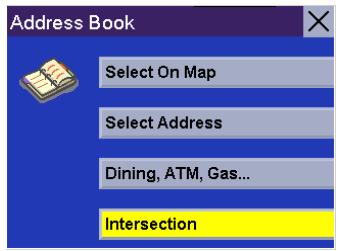
If only one region is active, the search will be conducted from that region. If more than one region is active, you will be asked to select the region from which to search.
Enter the first few characters for the first street. After you have selected the characters, select OK.

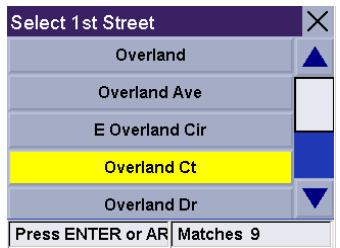
Use the navigation key to scroll the list up or down and select the desired street.
Chapter 8: Selecting Destinations
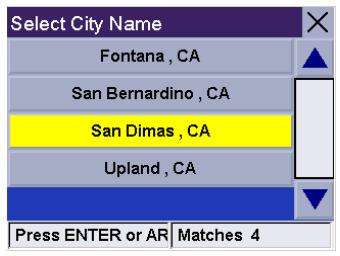
Select the city that the street is in. If the selected street is located in only one city, this screen will not appear.
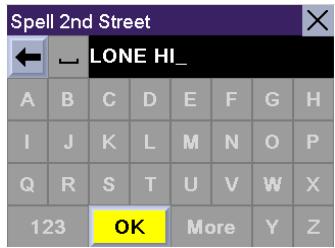
Enter the first few characters for the second street. After you have selected the characters, select OK.
Use the navigation key to scroll the list up or down and select the desired street. It is possible to select a non-intersecting street. In that case, a warning screen will appear. Press Cancel to go back and re-enter the street name.
Click on either the top line (name) or the bottom line (information) and enter the desired text.
Select Save to save the changes and return to the Address Book screen.
8.8.4 Trip Planner
The Trip Planner enables you to plot multiple destinations and save them as a trip. This feature is useful when planning a vacation, making deliveries, or running errands. Each user can define up to 20 trips with 20 destinations each. Each different destination will be saved in the address book. Note however, that only 200 addresses can be saved per user.
Chapter 8: Selecting Destinations
8.8.4.1 New
You can create trips from addresses stored in your address book.
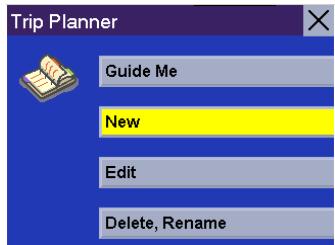
From the Select Destination screen, select Address Book, then select Trip Planner
Select New.
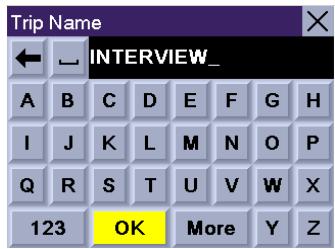
Enter a name for the trip and select OK
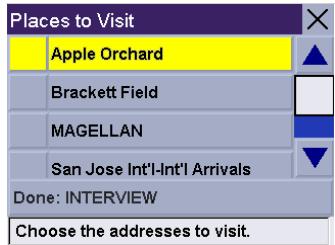
Your address list will be displayed.
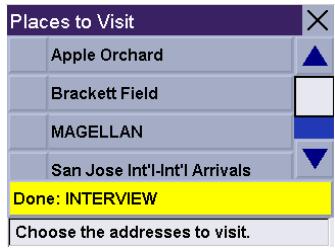
Select the addresses you wish to use in your trip in the order you wish them to be listed. When you have finished, select Done: [trip name].
You will be taken back to the Trip Planner screen. At this point you can choose to route to your new trip.

Chapter 8: Selecting Destinations
Press Guide Me.
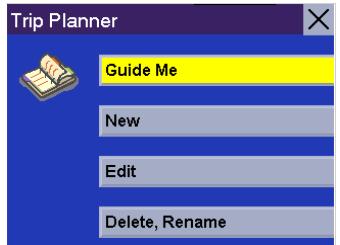
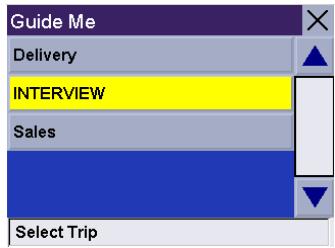
Select the trip you created.
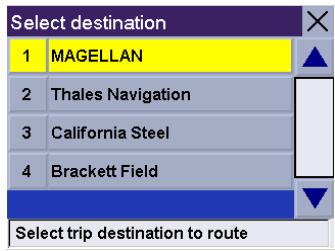
Select the first point of the trip you wish to route to.
Select the desired Route Method.
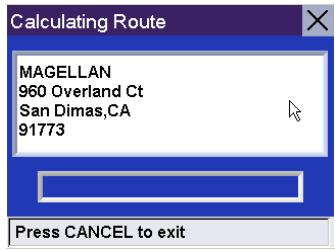
The Magellan RoadMate will calculate the route. When the calculations are complete, the Map screen will be displayed. When you arrive at your first point the Magellan RoadMate will notify you. Select Cancel or, if you turn off your car and turn it back on, the Magellan RoadMate will ask you to resume trip guidance. Select Resume to be routed to the next address in your trip. Select Cancel to stop trip guidance.
8.8.4.2 Edit
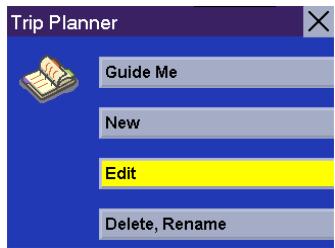
Editing your trip allows you to add, delete, or change the order of the points in your trip.
Chapter 8: Selecting Destinations
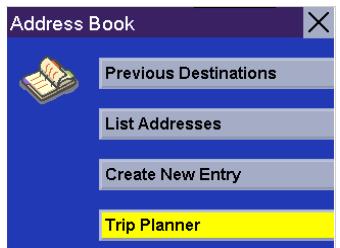
From the Select Destination screen, select Address Book, then select Trip Planner
Select Edit.
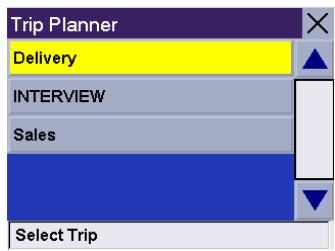
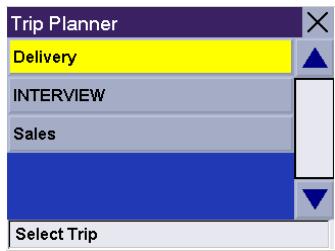
Select the Trip you wish to edit.
Select any of the points of the trip. A submenu will appear giving you the option of adding another point to your trip, moving the selected point up or down, or deleting the selected point.
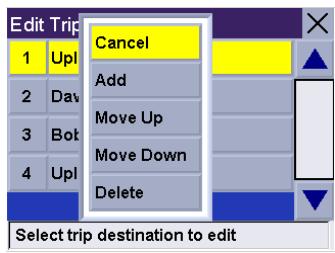
When you are finished making changes, press the Cancel button to return to the Trip Planner screen.
8.8.4.3 Delete, Rename
From the Select Destination screen, select Address Book, then select Trip Planner.
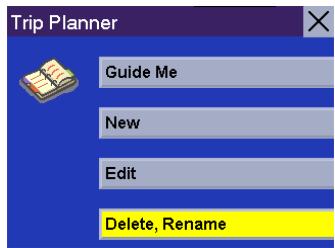
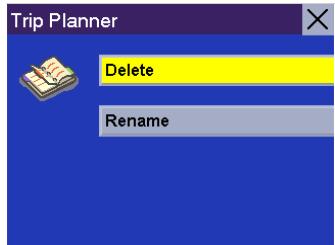
Select Delete, Rename.
Chapter 8: Selecting Destinations
Delete - Select Delete.
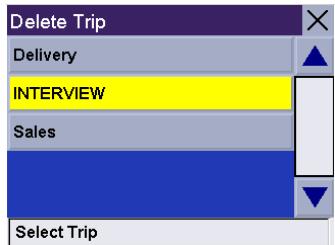
Select the trip you wish to delete.
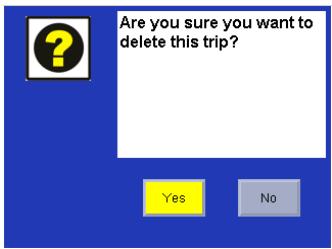
A dialog box will appear prompting you to confirm your selection. Select Yes.
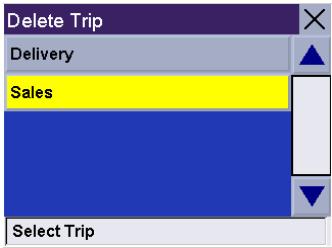
The trip has been deleted.
Rename - Select Rename.
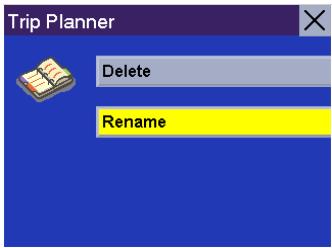
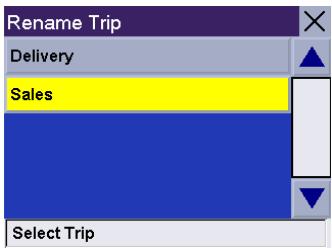
Select the trip you wish to rename.
Chapter 8: Selecting Destinations
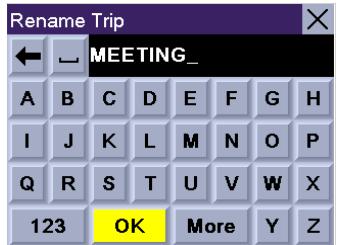
Use the backspace key to erase the name, then enter the new name. When you are finished, select OK.
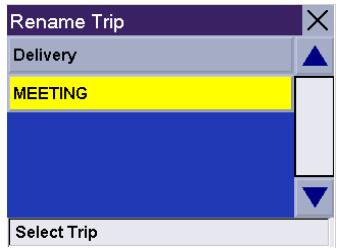
The trip has been renamed.
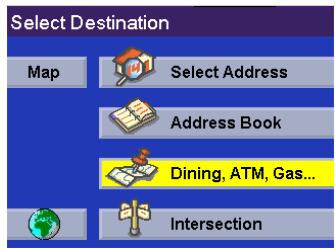
8.9 Selecting a Destination Using "Dining, ATM, Gas..."
Points of Interest (commonly referred to as POIs, include businesses, recreation areas, landmarks, or other services. These range from restaurants, parks, and gas stations, to hotels and city centers. The purpose of the POI database (accessed through the "Dining, ATM, Gas..." menu option) is to provide you a list of popular destinations that you might be interested in going to, without having to add them to your address book manually. These POIs are very useful while traveling in an unfamiliar city.
8.9.1 Search POI by Name
This function allows you to search for a specific point of interest. Select Dining, ATM, Gas..., then select Search POI by Name.
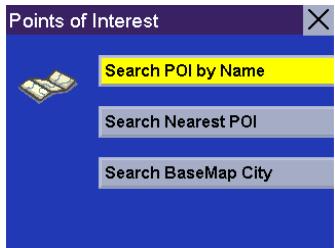
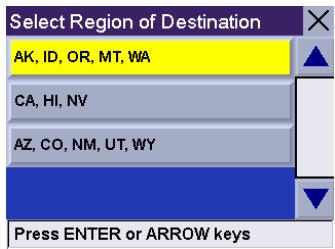
If only one region is active, the search will be conducted from that region. If more than one region is active, you will be asked to select the region from which to search.
Chapter 8: Selecting Destinations
8.9.1.1 Nearby Current Position
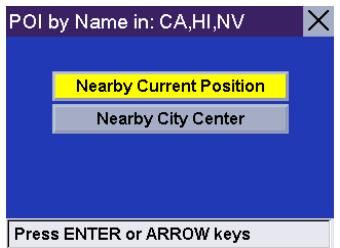
This function allows you to search for the named POI nearest to your present position starting with the closest. Select Nearby Current Position.
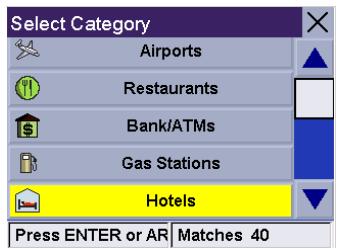
Select the POI category.
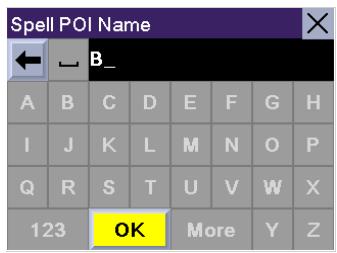
Enter the first few characters for the POI name. After you have selected the characters, select OK.
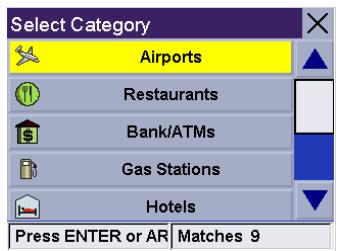
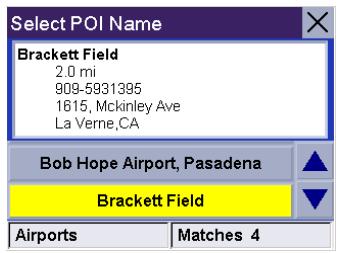
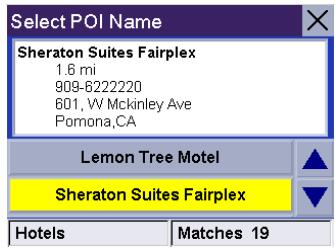
Use the navigation key to scroll the list up or down and select the desired POI.
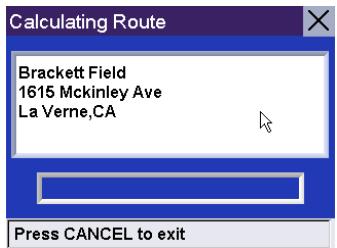
Select the desired Route Method.
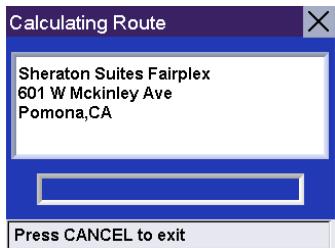
The Magellan RoadMate will calculate the route. When the calculations are complete, the Map screen will be displayed
Chapter 8: Selecting Destinations
8.9.1.2 Nearby City Center
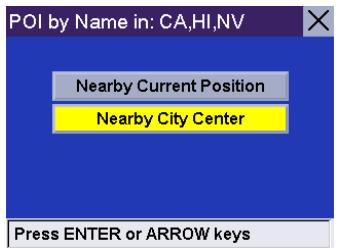
This function allows you to search for the named POI closest to the geographical center of a city within the region you selected. Select Nearby City Center.
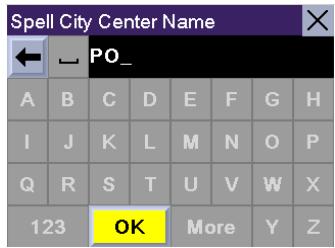
Enter the first few characters for the city name. After you have selected the characters, select OK.
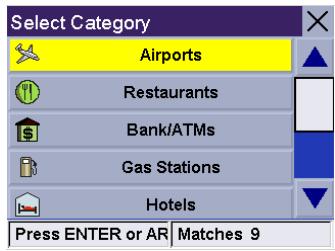
Select the POI category.
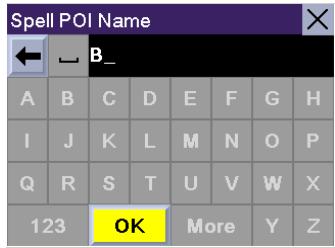
Enter the first few characters for the POI name. After you have selected the characters, select OK.
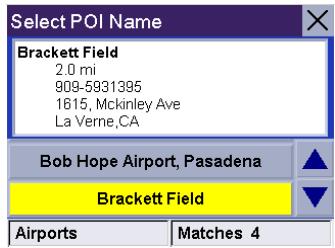
Use the navigation key to scroll the list up or down and select the desired POI.
Select the desired Route Method.
Chapter 8: Selecting Destinations
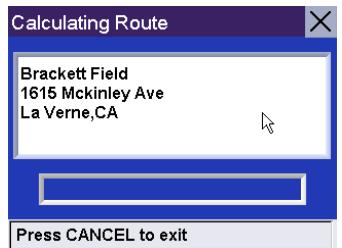
The Magellan RoadMate will calculate the route. When the calculations are complete, the Map screen will be displayed
8.9.2 Search Nearest POI
This function lets you search for the closest point of interest.
Select Dining, ATM, Gas..., then select Search Nearest POI.
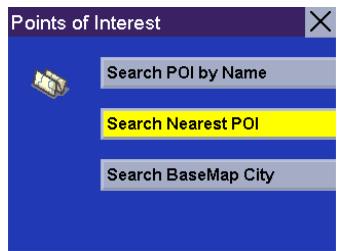
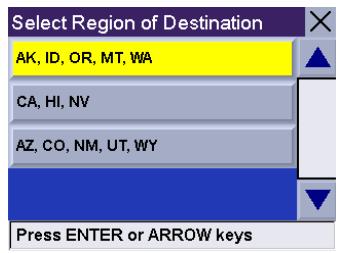
If only one region is active, the search will be conducted from that region. If more than one region is active, you will be asked to select the region from which to search.
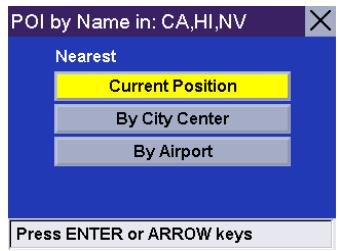
8.9.2.1 Current Position
This option lets you route to a specific point of interest closest to where you are at the time. From the Select Current Position.
Select the POI category (if available, select the sub-category).
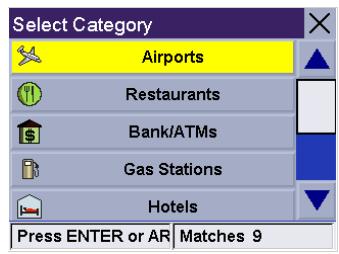
Use the navigation key to scroll the list up or down and select the desired POI.
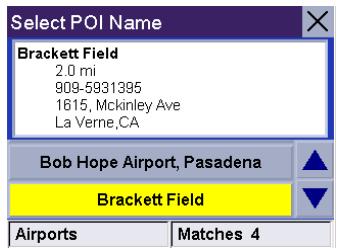
Chapter 8: Selecting Destinations
Select the desired Route Method.
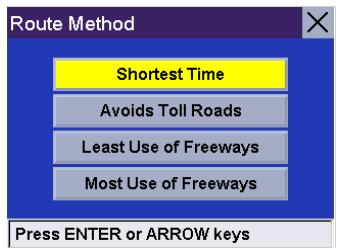
The Magellan RoadMate will calculate the route. When the calculations are complete, the Map screen will be displayed
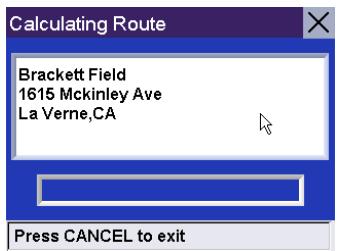
8.9.2.2 By City Center
This option lets you route to a specific point of interest closest to a chosen city center within the region you selected. Select By City Center.
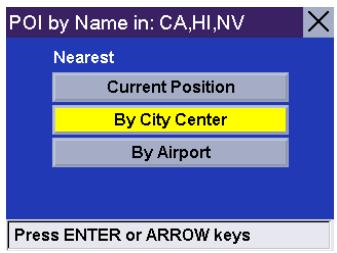
Enter the first few characters for the city name. After you have selected enough characters, select OK. If you wish, you may enter the entire city name.
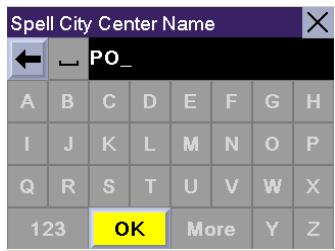
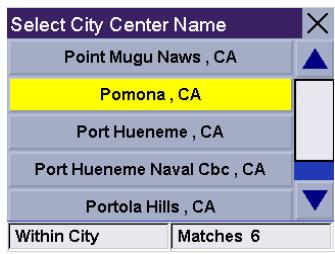
Use the navigation key to scroll the list up or down and select the desired city.
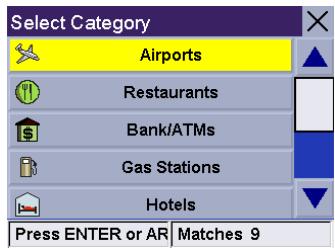
Select the POI category (if available, select the sub-category).
Chapter 8: Selecting Destinations
Use the navigation key to scroll the list up or down and select the desired POI.
Select the desired Route Method.

The Magellan RoadMate will calculate the route. When the calculations are complete, the Map screen will be displayed
8.9.2.3 By Airport
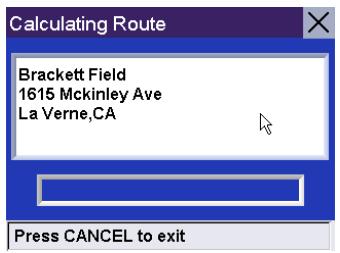
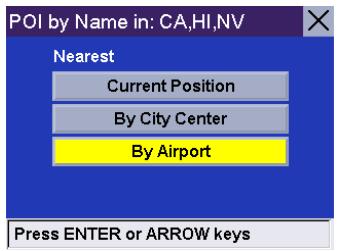
This option lets you route to a specific point of interest closest to a chosen airport. From the Select By Airport.
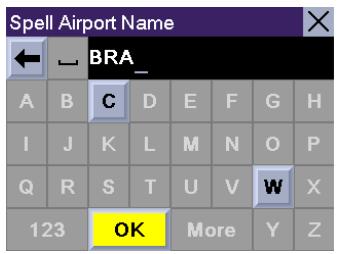
Enter the first few characters for the Airport name. After you have selected the characters, select OK. If you wish, you may enter the entire Airport name.
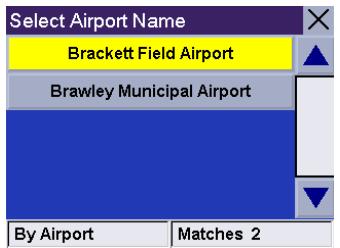
Use the navigation key to scroll the list up or down and select the desired Airport.
Chapter 8: Selecting Destinations
Select the POI category (if available, select the sub-category).
A list of available POIs that match your criteria is shown. Use the navigation key to scroll the list up or down and select the desired POI.
Select the desired Route Method.
The Magellan RoadMate will calculate the route. When the calculations are complete, the Map screen will be displayed
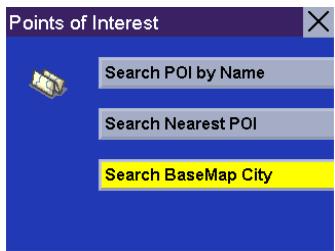
8.9.3 Search BaseMap City
The Magellan RoadMate's built-in basemap contains over 34,000 city centers. You can search for and route to any one of these city centers.
From the Select Destination screen, select Dining, ATM, Gas..., then select Search Basemap City.
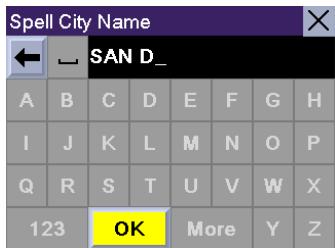
Enter the first few characters for the city. After you have selected the characters, select OK. If you wish, you may enter the entire city name.
Chapter 8: Selecting Destinations
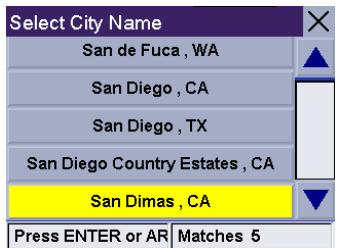
Use the navigation key to scroll the list up or down and select the desired city.
Select the desired Route Method.
The Magellan RoadMate will calculate the route. When the calculations are complete, the Map screen will be displayed
8.10 Selecting a Destination Using "Intersection"
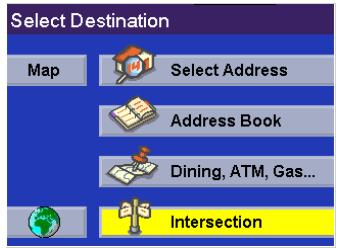
Intersections are very common markers for routing when you don't know the actual address. The Magellan RoadMate can route you to an intersection of two streets contained within the active detailed map. From the Select Destination screen, select Intersection.
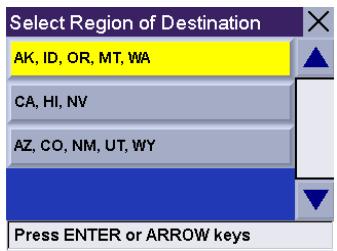
If only one region is active, the search will be conducted from that region. If more than one region is active, you will be asked to select the region from which to search.
Chapter 8: Selecting Destinations
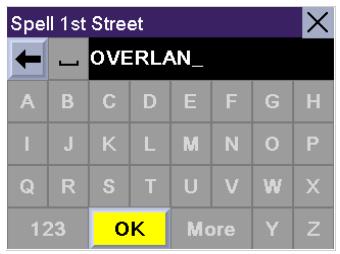
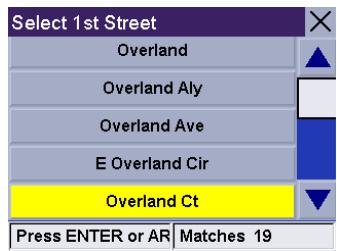
Enter the first few characters for the first street. After you have selected the characters, select OK.
Use the navigation key to scroll the list up or down and select the desired street.
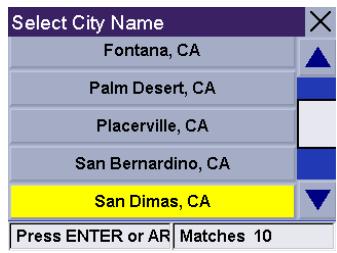
Select the city that the street is in. If the street is in only one city, this screen will not appear.
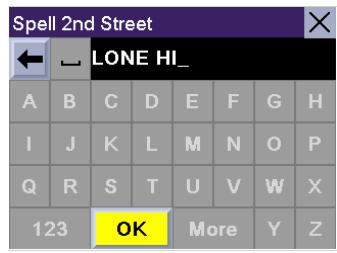
Enter the first few characters for the second street. After you have selected the characters, select OK. It is possible to enter an non-intersecting street. In that case, a warning screen will appear. Press the Cancel key to go back and re-enter the street name.
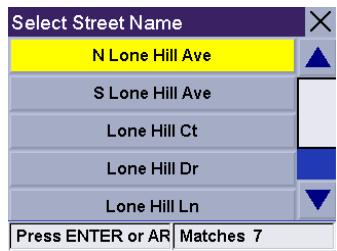
Use the navigation key to scroll the list up or down and select the desired street.
Select the desired Route Method.
Chapter 8: Selecting Destinations
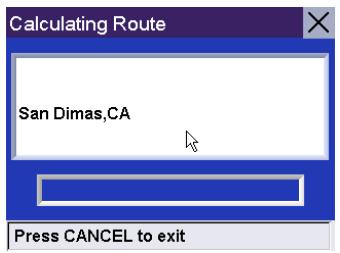
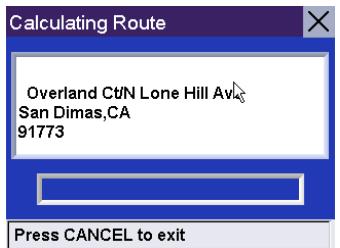
The Magellan RoadMate will calculate the route. When the calculations are complete, the Map screen will be displayed
8.11 Selecting a POI on the Map
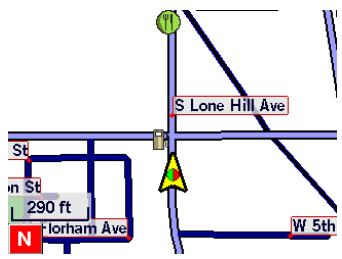
While viewing the Map screen, you can select a POI icon and be routed to it, or save it to you address book.
Touch the POI on the screen.
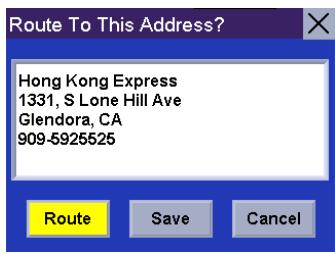
A dialog box will appear giving you information on the POI. Select Route.
Select the desired Route Method.
The Magellan RoadMate will calculate the route. When the calculations are complete, the Map screen will be displayed
Chapter 9: Traveling
9.1 Guidance Information Screens
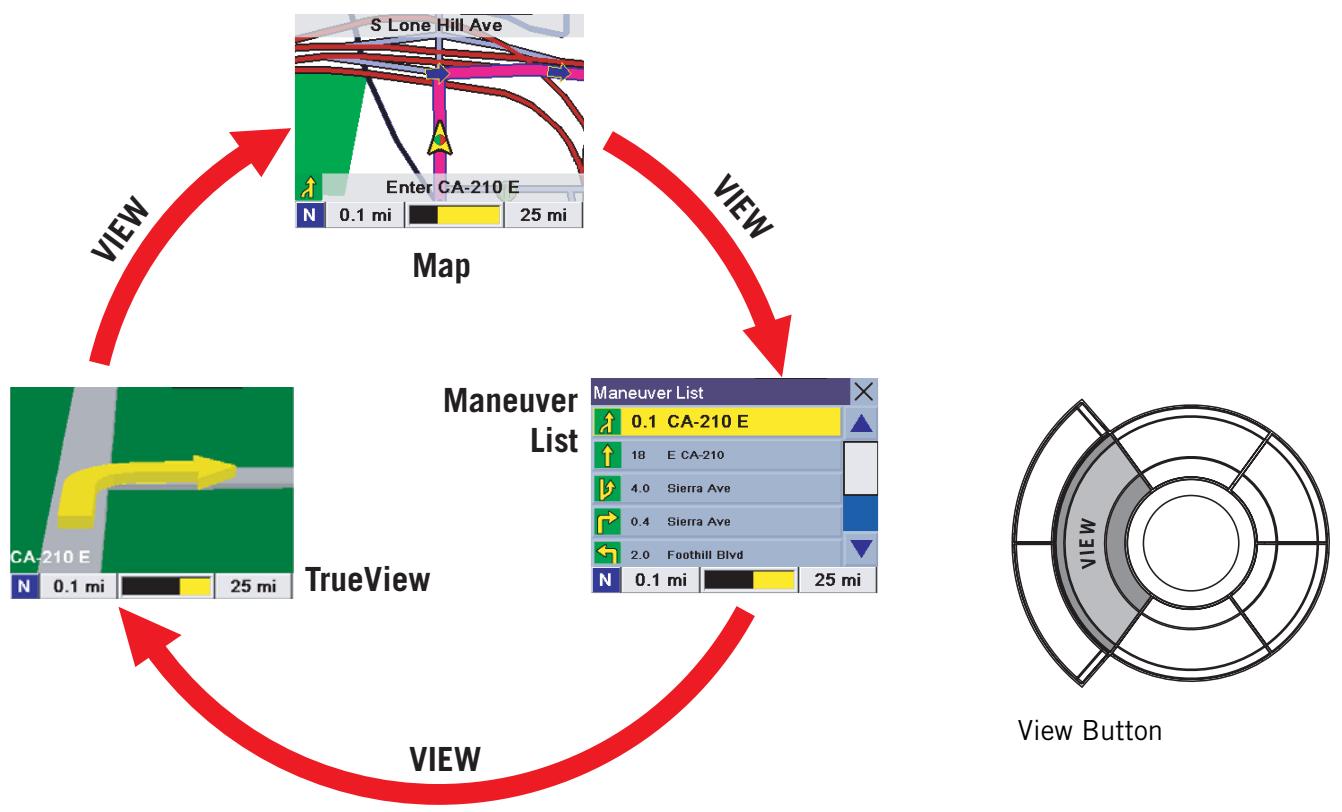
The Magellan RoadMate has three screens you can use to assist you in traveling to your destination: the Map screen, the Maneuver List screen, and the TrueView (or Split TrueView) screen.
The Map Screen — This screen displays a map of your surrounding area, along with the planned route (if calculated) and information about the route. This screen also displays your direction of travel. This screen can be accessed when you have no route by selecting the Map button on the Select Destination screen or by pressing the View or Cancel key while viewing the Select Destination screen.
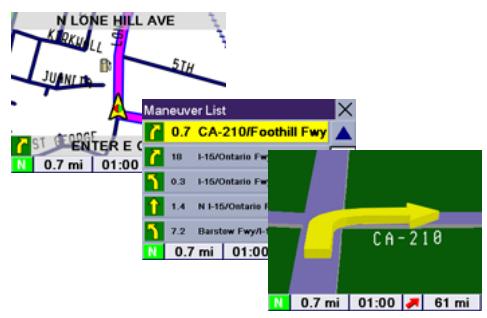
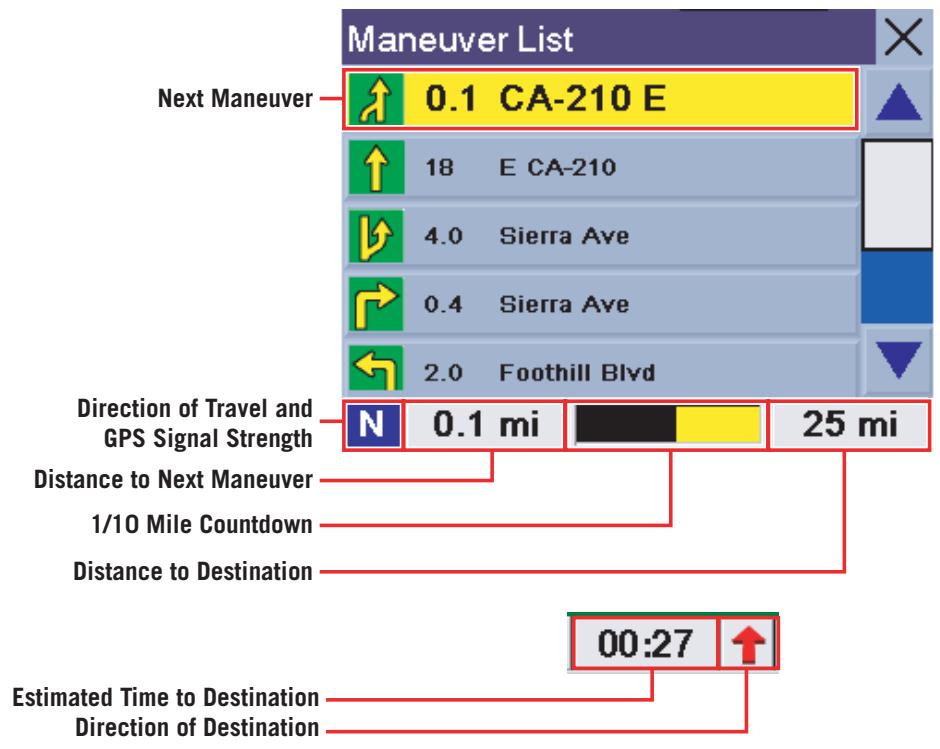
The Maneuver List Screen — This screen is available only when a route has been calculated. This screen displays a list of each maneuver along the calculated route to your destination. To access the Maneuver List screen, press the View button while viewing the Map screen.
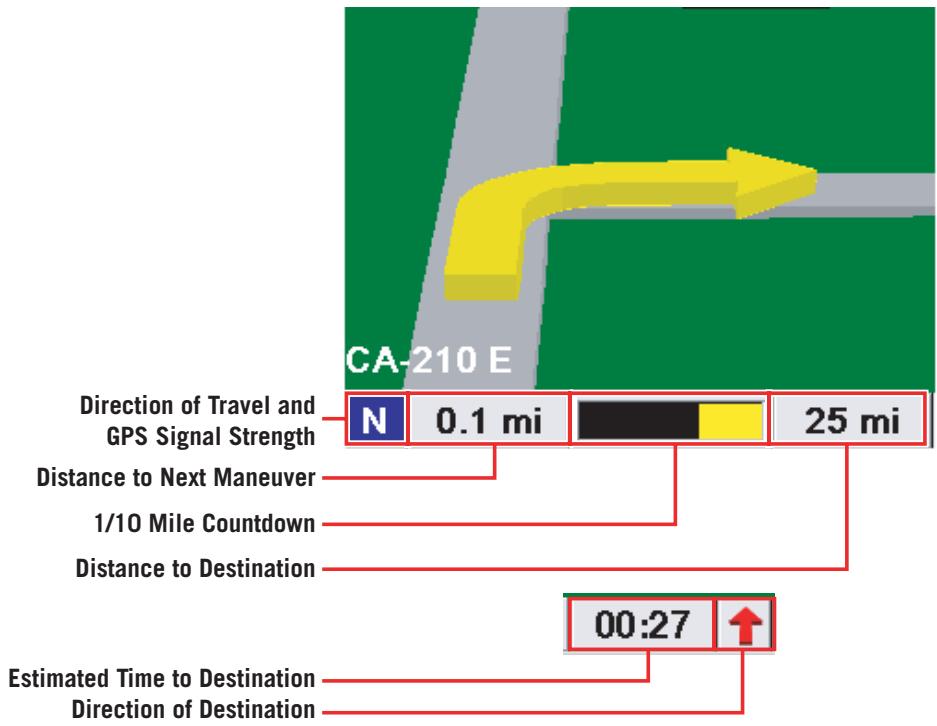
The TrueView/Split TrueView Screen — This screen is available only when a route has been calculated. This screen displays the next maneuver as a graphic. To access the TrueView screen, press the View button while viewing the Maneuver List.
Chapter 9: Traveling
9.1.1 Map Screen
The Map screen is the most commonly used screen in the Magellan RoadMate. It provides you with detailed information about where you are and where you are going.
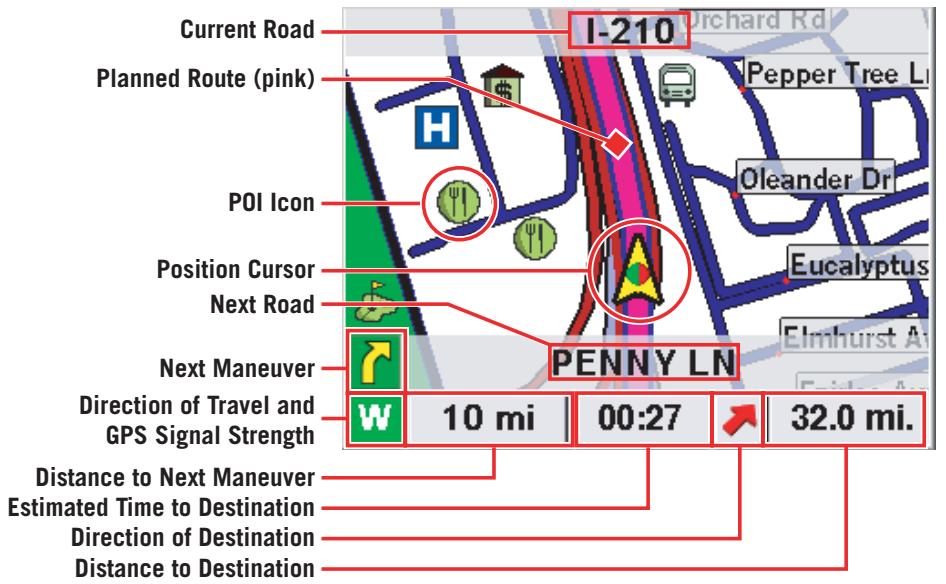
As you travel, the Map screen constantly updates your location. It provides you with not only a map but also a visual indication of where you are on the map.
If the Magellan RoadMate loses the satellite signal for more than 15 seconds and is unable to compute your location, the display will automatically switch to the Maneuver List screen. This will give you the information needed for your next maneuver. While viewing the map screen, touching a POI icon will give you the option of routing to that point. See “Selecting a POI on the Map” on page 60..
9.1.2 Changing the Map Zoom Levels
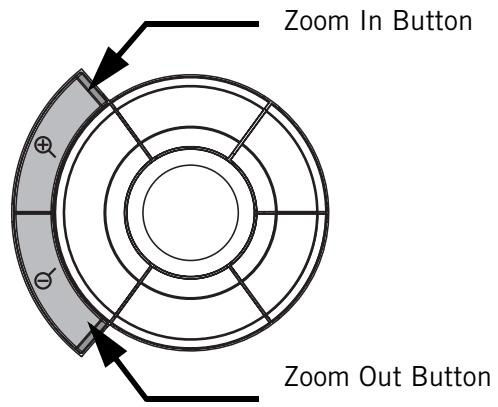
While in the Map screen, you can zoom in on (enlarge) the map or zoom out from (shrink) the map. The zoom levels range from 130 ft. to 1665 mi.
Chapter 9: Traveling
9.1.3 Maneuver List Screen
9.1.4 TrueView Screen
Chapter 9: Traveling
9.2 Current Location
9.2.1 Displaying Information About Your Current Location
Whenever you want to view information about your present location you can press the Locate button.
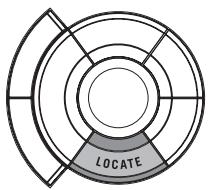
This screen displays the name of the street you are currently traveling on, the city you are in, your current heading, speed and latitude and longitude coordinates. It also displays the distance to and name of the next street, and the distance from and name of the previous street.
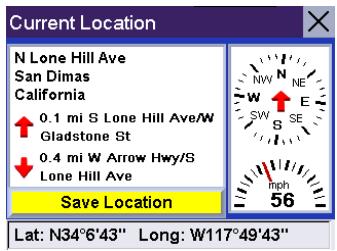
9.2.2 Save Location
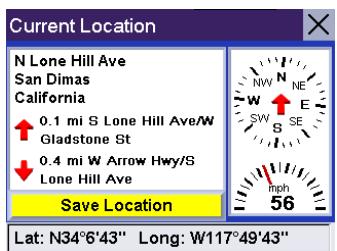
If you are traveling and you wish to save a location that is not in the database, say a photo spot or a fishing spot, you can save it to your address book. Press the Locate button.
Select Save Location.
Select Edit Name.
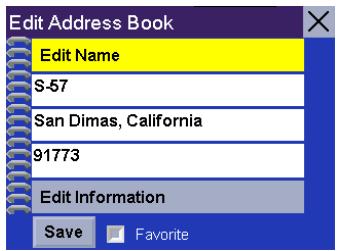
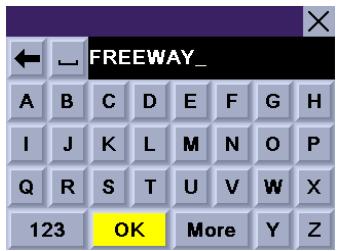
Edit the name of the location. Select OK.
Chapter 9: Traveling
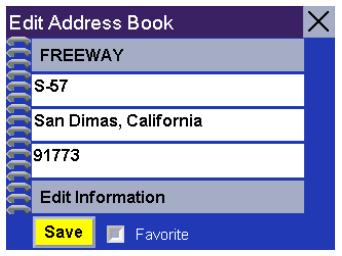
Select Save. The address is saved to your address book and you are returned to the last viewed screen.
Chapter 10: User Options
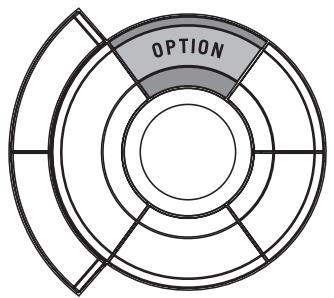
User Options enable you to customize the Magellan RoadMate and take advantage of its data recording capabilities. User Options can be accessed from any screen by pressing the Options button.
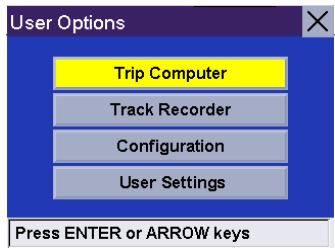
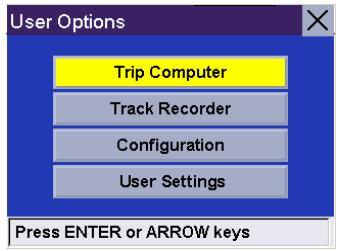
The User Options section of Magellan RoadMate provides you with four options:
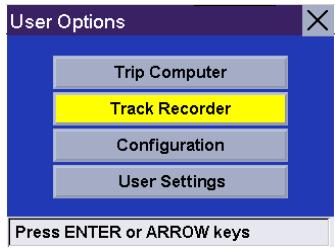
Trip Computer - Displays useful information about your trip such as mileage, that can be saved for future reference. Ideal for the business traveler who needs to record mileage and time spent on the road.
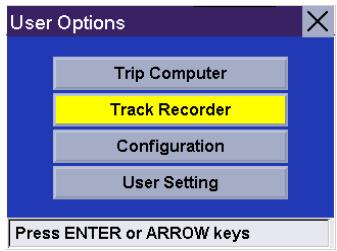
Track Recorder - Records a graphical representation of where you've been that you can save and playback on your computer using the Magellan RoadMate Manager application.
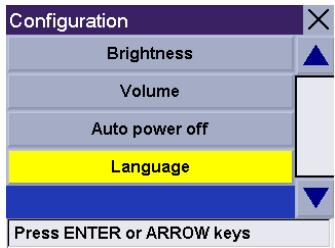
Configuration - Lets you change the audio, video, language, and power option settings of the Magellan RoadMate.
User Settings - Lets you further customize the Magellan RoadMate.
10.1 Trip Computer
The Trip Computer is a valuable tool for recording the mileage and time spent driving while on vacation or on a business trip. The information for the trip can be saved to the Magellan RoadMate as a report and viewed at any time, giving you easy access to previous and current trip information.
When you begin a new trip and you need to record the information, access the Trip Computer. There, you can save the information displayed for the current trip (if needed) and reset the Trip Computer to zero in preparation for your new trip.
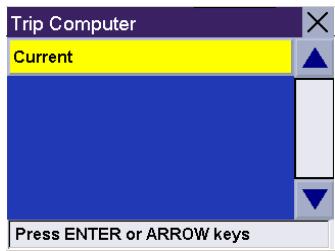
Press the Option button and select Trip Computer.
Select Current.
Chapter 10: User Options
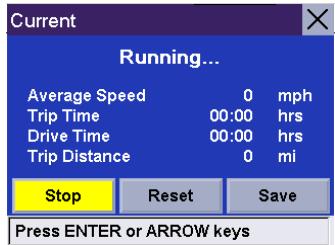
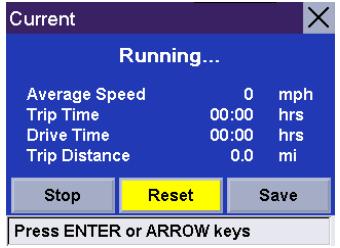
The data for the current trip is displayed. By default, the trip will be running and recording data from the first time it is turned on. From this screen, the Trip Computer can be restarted, stopped, reset or saved.
10.1.1 Stopping or Starting the Trip Computer
Select Stop to stop the current trip.
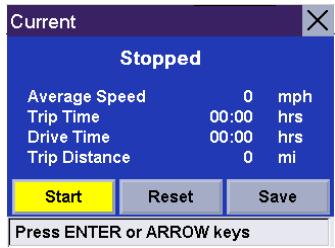
Select Start to resume the current trip.
The top of the display will show "Running..." or "Stopped," depending on the current status of the Trip Computer.
10.1.2 Saving the Current Trip Report
Select Save.
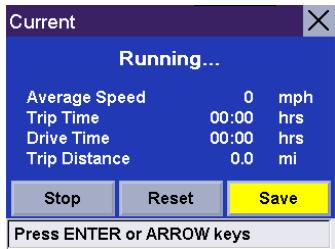
Use the keypad to enter a name for the saved Trip Report and select OK.
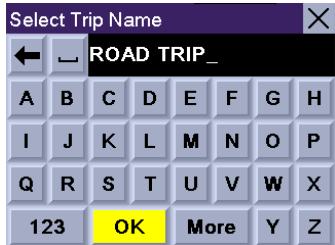
Your trip is saved and you are returned to the current trip screen.
Chapter 10: User Options
10.1.3 Resetting the Trip Computer
Select Reset. The values for the Trip Computer will be set to zero. Resetting the Trip Computer will also set the status of the computer to “Running...” if it had been stopped previously.
10.1.4 Viewing a Saved Trip Report
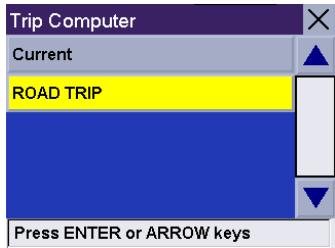
From any screen, press the Option button. Select Trip Computer.
Select the Trip Report to be viewed.
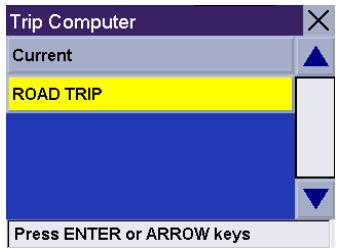
The saved Trip Report is displayed. When you are done viewing the saved Trip Report, you can press Cancel twice to be returned to the User Options screen.
10.1.5 Deleting a Trip Report
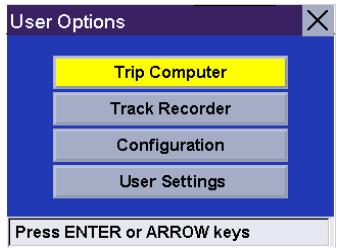
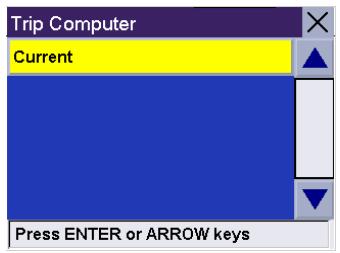
From any screen, press the Option button. Select Trip Computer.
Chapter 10: User Options
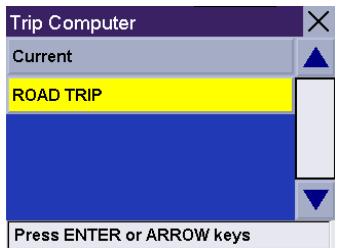
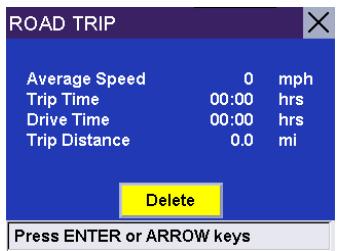
Select the Trip Report to be deleted.
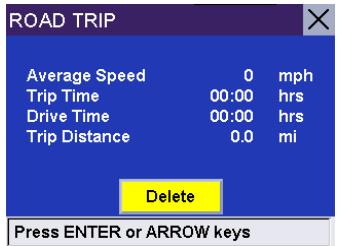
The details of the Trip Report are displayed. Select Delete.
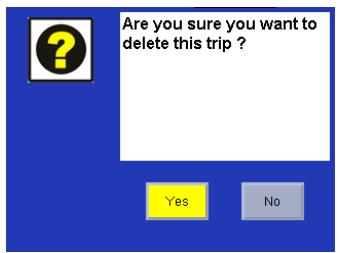
Select Yes to confirm.
The Trip Report is deleted, and you are returned to the Trip Computer screen.
10.2 Track Recorder
The Track Recorder is useful if you wish to keep a record of a route you have taken to a particular place. You can record up to 30 tracks on your unit with 2,000 track points each.
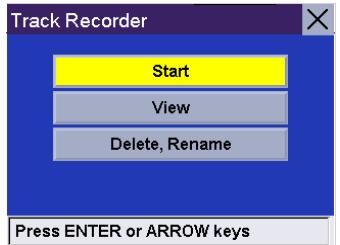
10.2.1 Start Track Recorder
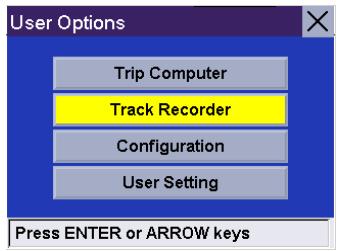
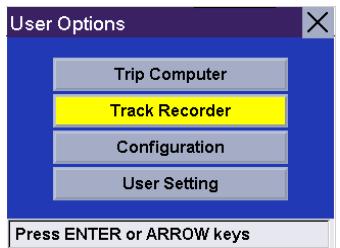
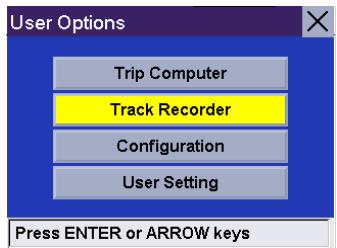
From any screen, press the Option button and select Track Recorder.
Chapter 10: User Options
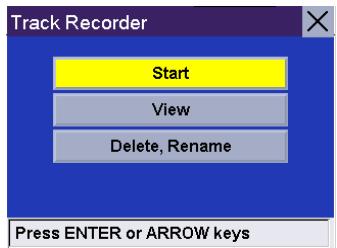
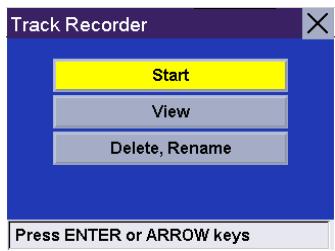
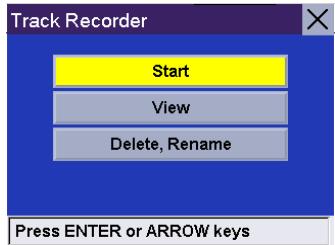
Select Start to begin recording a new track.
The Magellan RoadMate will begin recording. At this point you can return to the Map screen by pressing the Cancel button and continue driving normally.
10.2.2 Stop Track Recorder
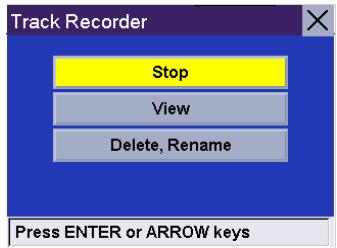
From any screen press the Option button and select Track Recorder.
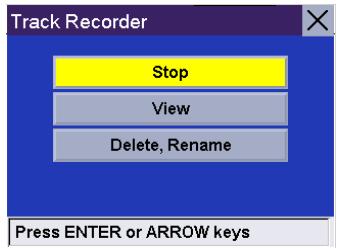
Select Stop.
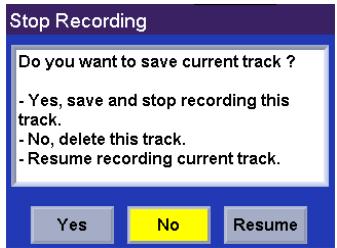
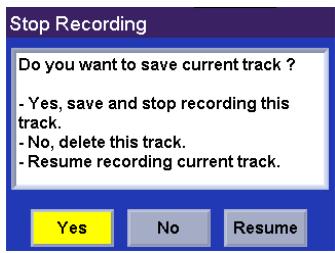
A dialog box will appear asking you if you wish to stop the track and save it, stop the track and not save it, or resume recording the track. Select No.
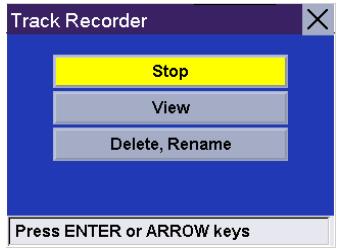
The track recorder is stopped and you are returned to the Track Recorder screen.
Chapter 10: User Options
10.2.3 Save Track Record
From any screen press the Option button and select Track Recorder.
Select Stop.
A dialog box will appear asking you if you wish to stop the track and save it, stop the track and not save it, or resume recording the track. Select Yes.
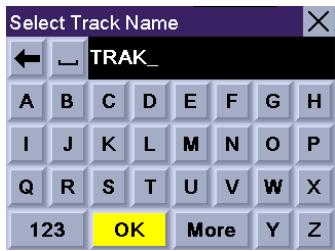
You will be prompted to enter a name for your track. When you are finished, select OK.
You are returned to the Track Recorder screen.
10.2.4 View Track
From any screen press the Option button and select Track Recorder.
Chapter 10: User Options
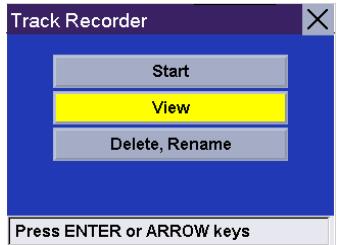
Select View.
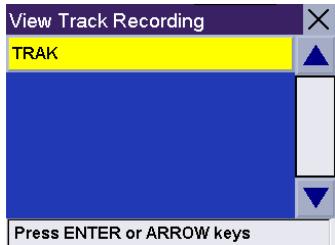
Select the track you wish to view from the list.
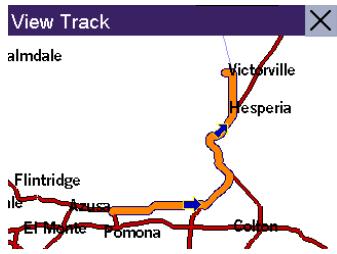
The track will be displayed. When you are finished viewing the track, press the Cancel button.
You are returned to the Track Recorder screen.
10.2.5 Delete, Rename Track
From any screen press the Option button and select Track Recorder.
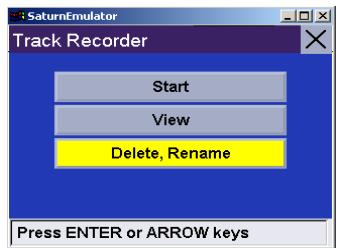
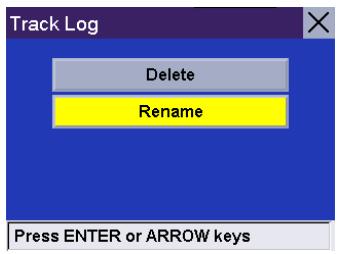
Select Delete, Rename.
Chapter 10: User Options
Delete
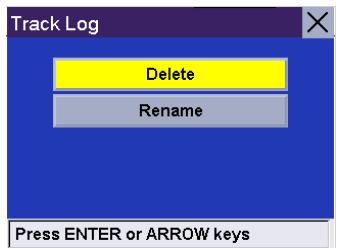
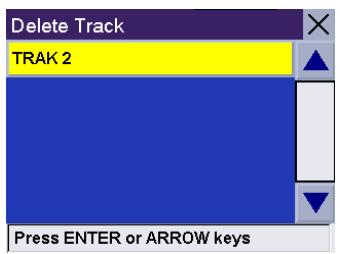
Select Delete.
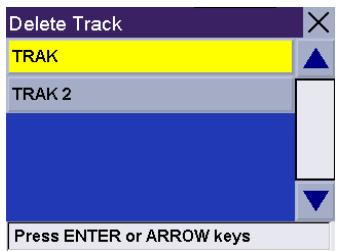
Select the track you wish to delete.
A dialog box swill appear asking you to confirm your request. Select Yes.
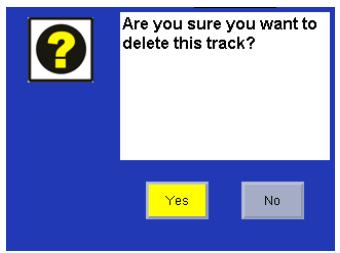
The track is deleted.
Rename
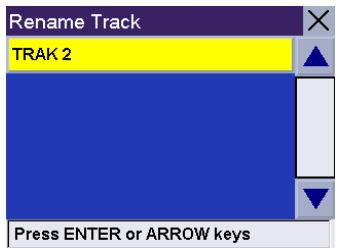
Select Rename.
Select the name of the track you wish to rename.
Chapter 10: User Options
Use the backspace key to erase the old name and enter the new name. Select OK.
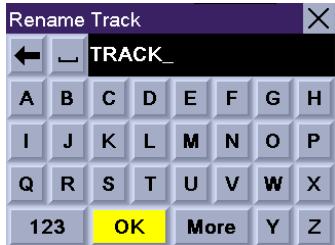
The track has been renamed.
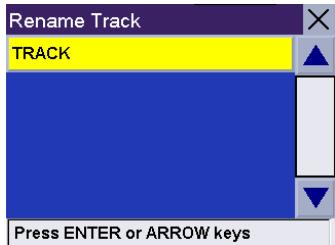
10.3 Configuration
The Configuration menu lets you adjust the visual and audio settings of the Magellan RoadMate.
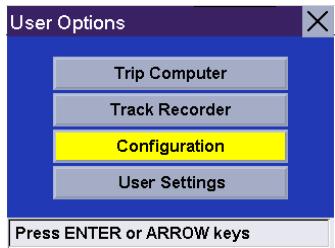
From any screen, press the Option button. Select Configuration.
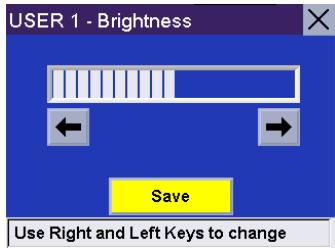
10.3.1 Brightness
Select "Brightness".
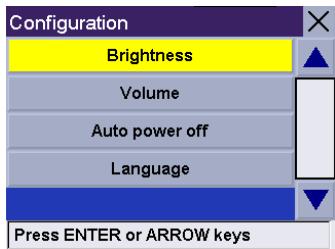
Press right arrow to increase the brightness, press the left arrow to decrease the brightness. When you are finished, select Save.
Chapter 10: User Options
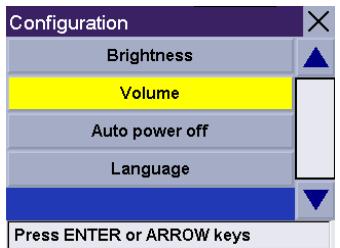
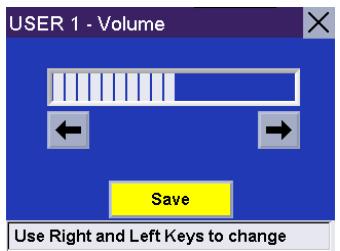
10.3.2 Volume
Select Volume.
Press the right arrow to increase the volume, press the left arrow to decrease the volume. When you are finished, select Save.
10.3.3 Auto Power Off
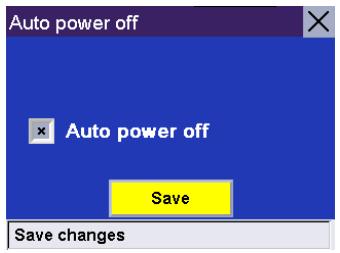
The Magellan RoadMate can be set to automatically shut itself off after 20 minutes of inactivity. Select Auto power off.
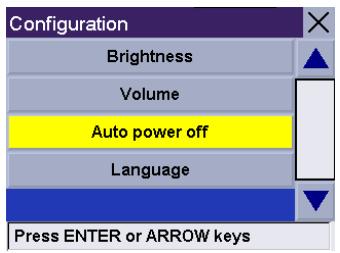
Select Auto Power Off. The box is checked indicating that the feature is active. Select Save.
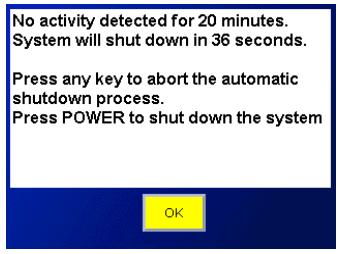
If after 20 minutes it has not received any input or changed location, an audible alert will sound and a screen will appear notifying you that the unit will shut down in 60 seconds. Pressing any key will disable this warning.
Chapter 10: User Options
10.3.4 Language
Select Language.
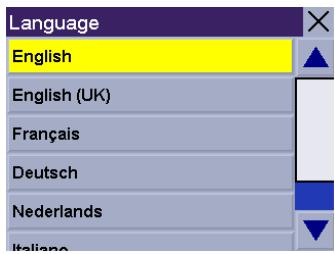
Select the desired language you would like to use. This language will be used for all menu selections and voice prompts.
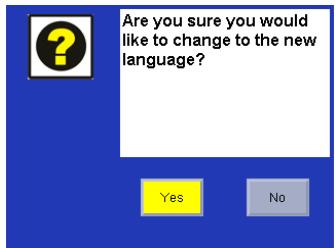
A dialog box will appear asking you to confirm your selection. Select Yes.
The Magellan RoadMate will shut down and restart automatically with your language selection.
10.4 User Settings
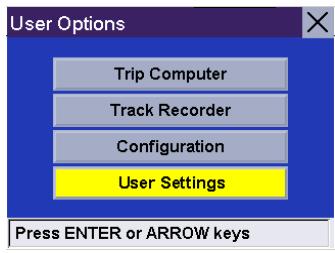
The Magellan RoadMate can be further configured to each user's preferences. From any screen, press the Option button. Select User Settings.
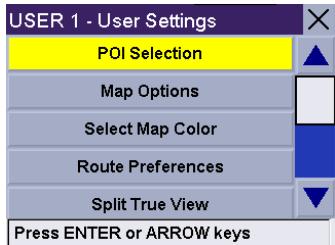
10.4.1 POI Selection
You can customize the Map screen to display all, none, or individual POIs. Select POI Selection.
Chapter 10: User Options
Select Mark All to show all available POI icons on the Map screen.
Select Clear All to remove all POI icons from the Map screen.
Or, you can individually select which icons to remove or show on the map screen. When you have finished selecting which icons you want to display, select Save.
10.4.2 Map Options
You can customize how the data is displayed on the Map screen. Select Map Options.
Select the options you wish to change. When you are finished, select Save.
Map Orientation – Heading Up sets the map display so that the direction of travel is always at the top of the screen. North Up sets the map so that the top of the screen always displays North.
Units of Measure - Select miles or kilometers as the unit of measure for distance.
Map Guidance Option - Map Smart automatically changes the display from the Map screen to the TrueView screen before the maneuver. Map Always shows only the Map screen and the highlighted route. Map Manual allows the TrueView screen to be displayed only when the View button is pressed.
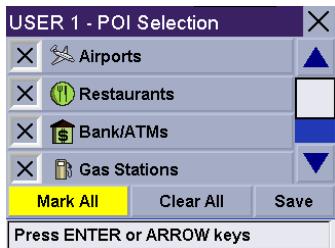
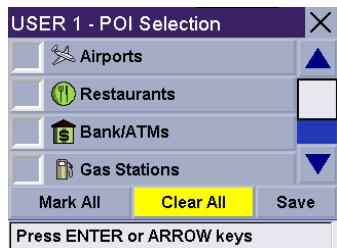
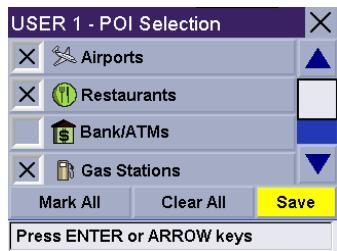
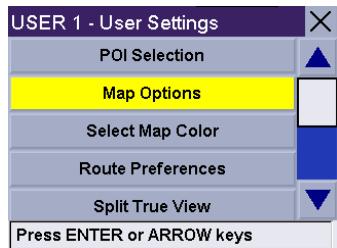
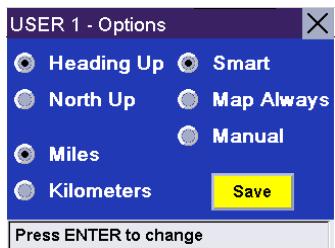
Chapter 10: User Options
10.4.3 Select Map Color
You can change the color scheme of the map. Select Select Map Color.
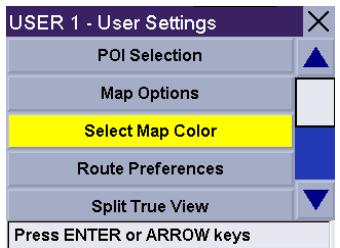
Select the desired color scheme. When you are finished, select Save.
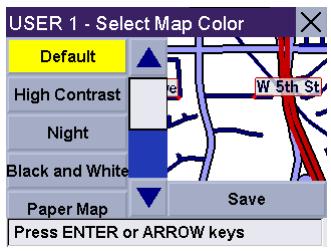
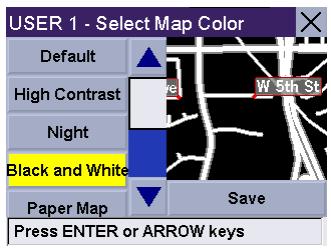
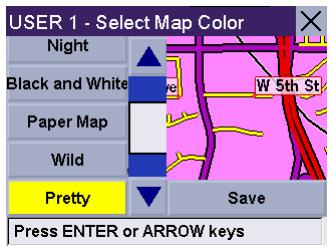
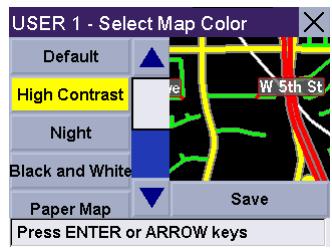
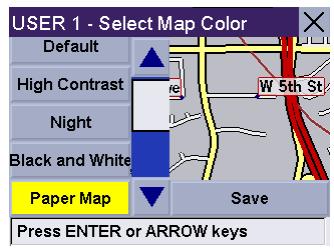
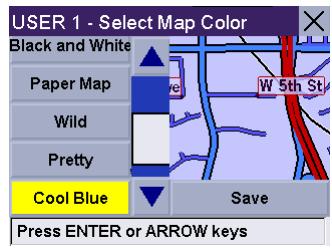
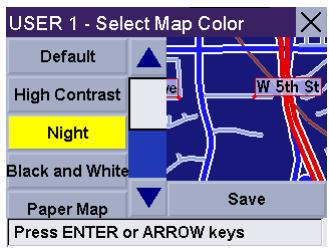
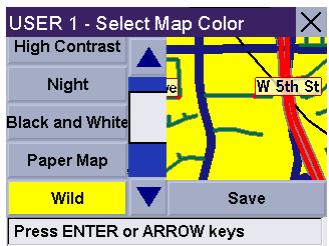
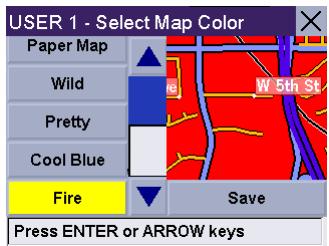
10.4.4 Route Preferences
Route references is where you activate or deactivate Automatic Re-Route. Automatic Re-Route enables the Magellan RoadMate to automatically re-calculate the route to the destination when it has detected that the vehicle is not on the previously calculated route. Select Route Preferences.
Select Automatic Re-Route. The box is checked indicating that the feature is active. Select Save.
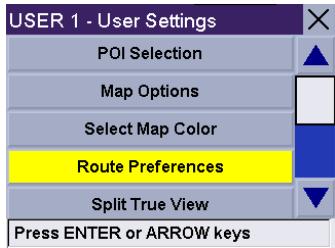
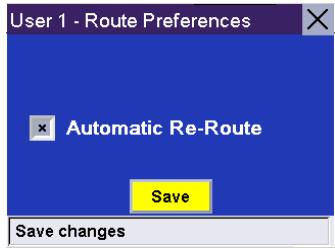
Chapter 10: User Options
10.4.5 Split TrueView
With Split TrueView active, the normal TrueView screen is shown simultaneously with the map screen. Select Split TrueView.
Select Split TrueView. The box is checked indicating that the feature is active. Select Save.
The TrueView screen is now split with one half showing TrueView, and the other half showing the map.
10.4.6 Menu Colors
Select Menu Colors.
Select the preferred color scheme and select Save.
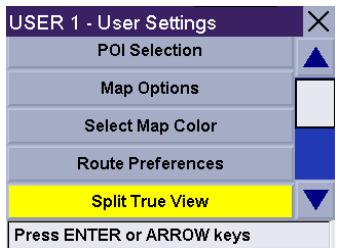
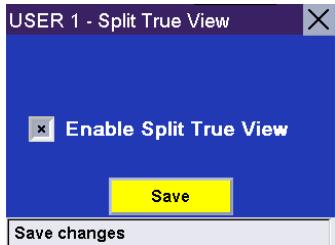
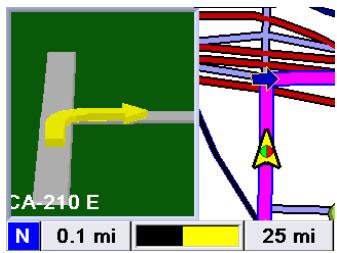

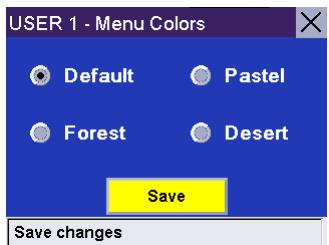
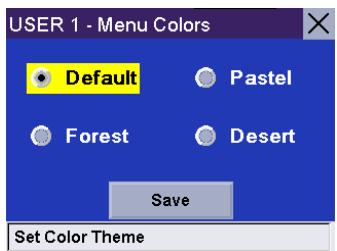
Default
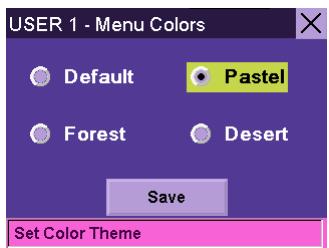
Pastel
Chapter 10: User Options
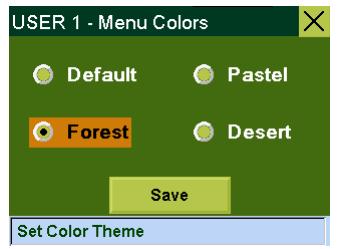
Forest
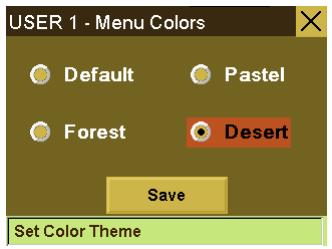
Desert
10.4.7 Tone Options
You can have the Magellan RoadMate alert you by one of three tones. Select Tone Options.
Select the desired sound you want the Magellan RoadMate to alert you with. When you are finished, select Save.
10.4.8 Diagnostics
The Magellan RoadMate has a number of diagnostic features that enable you to check the condition of the unit. Select Diagnostics.
10.4.8.1 GPS Status
Monitors the satellite signal.
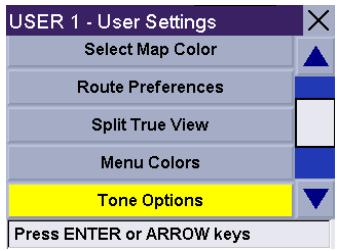
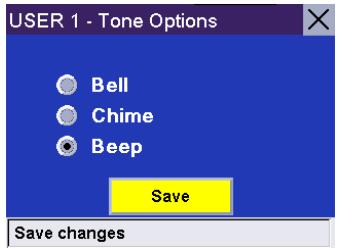
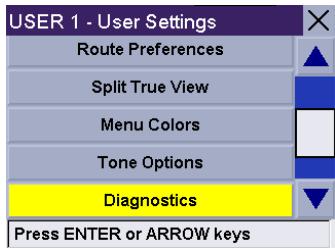
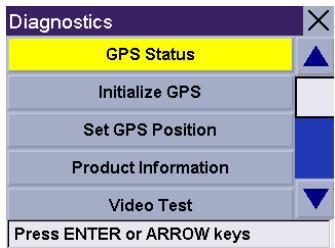
Chapter 10: User Options
10.4.8.2 Initialize GPS
Reset the unit and reacquires the satellite signal. Note: Previously saved satellite data will be reset and reacquiring the satellite signal may take 15 minutes or more.
10.4.8.3 Set GPS Position
Enables you to manually set the location of the current position icon. If you have traveled a long distance with the unit off, it may take some time for the unit to reacquire a satellite signal. By manually setting the position of the unit you are telling the unit where you are and will speed up the satellite signal acquisition. There are two options for setting the GPS position:
10.4.8.3.1 Search by Street
This function enables you enter a specific address by which to set the GPS position. Select Search by Street.
If only one region is active, the search will be conducted from that region. If more than one region is active, you will be asked to select the region from which to search.
Enter the base name for the street. For example, if you are searching for "Overland Court" you would enter "OVERLAND". As you type, the AutoFill will show the next possible match from the database. Select OK. For additional help with entering street names, see "Help with Address Entry" on page 18.
Use the navigation key to scroll the list up or down and select the desired street from the list.
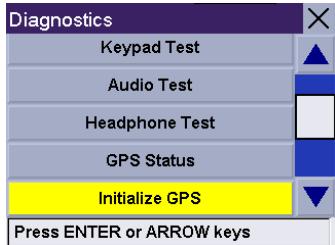
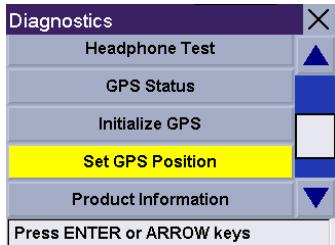
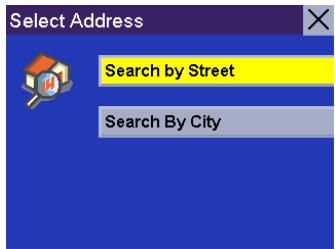
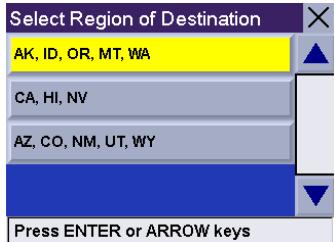
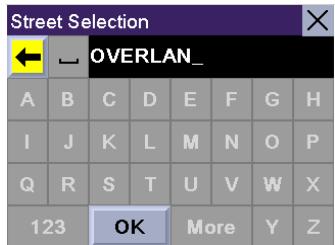
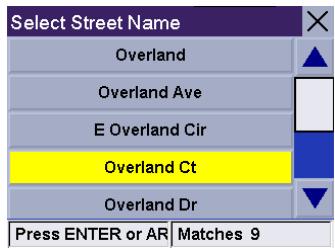
Chapter 10: User Options
The Magellan RoadMate will list all the cities the street is in based on the selected region. If this list does not appear, the street is only in one city. Select the desired city from the list.
Enter the street address. The acceptable range of numbers is displayed at the top of the screen. If you do not know the exact address, just select Done and the Magellan RoadMate will route you to the lowest number in the range. Select Done to continue. You will be returned to the Diagnostics Screen.
Go to the Map Screen. Your current position is now set to the address you entered.
10.4.8.3.2 Search By City
This function enables you enter a city center by which to set the GPS position if you don't know the exact address for your location. Select Search By City.
Enter the first few characters for the city. After you have selected the characters, select OK.
Use the navigation key to scroll the list up or down and select the desired city. You are returned to the Diagnostics Screen.
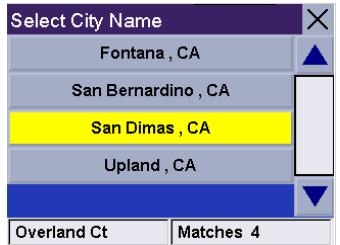
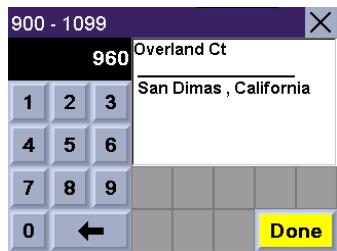
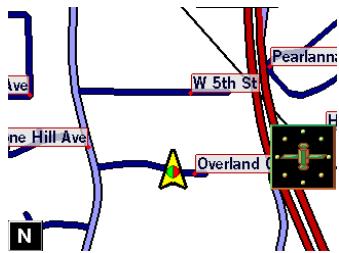
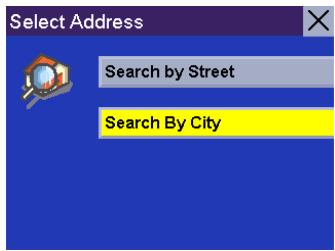
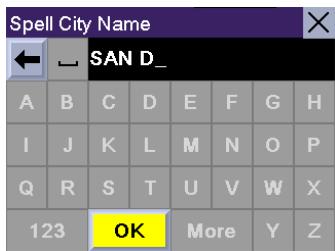
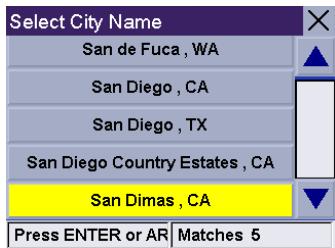
Chapter 10: User Options
10.4.8.4 Product Information
Gives you detail about the hardware and software the is currently being used by the Magellan RoadMate. This feature is useful when receiving software updates.
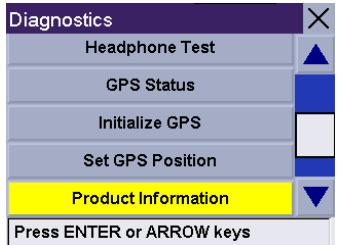
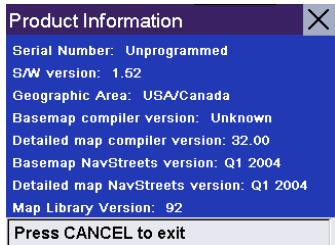
10.4.8.5 Video Test
Displays random colors to ensure that your display is working properly.
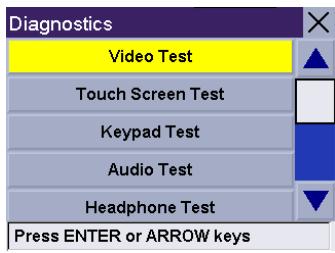
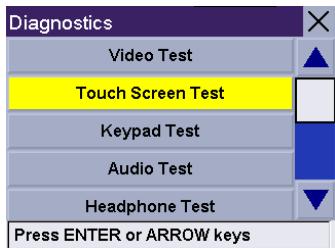
10.4.8.6 Touch Screen Test
Checks that the touch screen is calibrated and accurate.
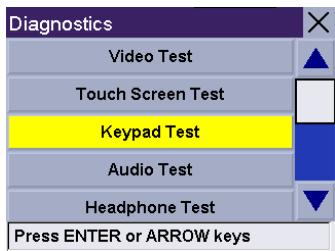
10.4.8.7 Keypad Test
Verifies proper operation of the keypad.
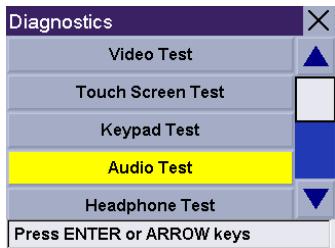
10.4.8.8 Audio Test
Checks that the speaker is working correctly.
Chapter 10: User Options
10.4.8.9 Headphone Test
Checks that sound is transmitted to the headphone jack correctly.
10.4.8.10 Simulator Mode
In Simulator Mode, you can demonstrate the capabilities of the Magellan RoadMate without actually driving. In order for the simulation to work, you must set a route first. Select Simulator Mode.
The Propose simulator mode when calculating route option will ask you if you want to activate the simulator after you select a location to route to.
After you select your destination and select Route, a dialog box will appear asking you if you would like to simulate driving the route. Select Yes. The simulation will begin.
You can control the playback of the simulation by selecting Restart to start the simulation again, Step Back to go back along the route a distance of one mile, Step Forward to advance along the route a distance of one mile, or Stop to stop the simulation.
You can also control the speed coefficient at which the simulator runs. Where 1X is typical speed for the current road, 1.5X is one and one half times typical speed, and 2X is twice the typical speed.
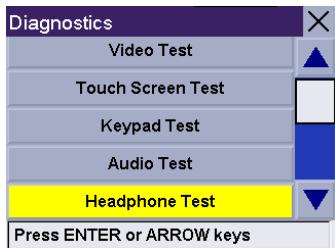
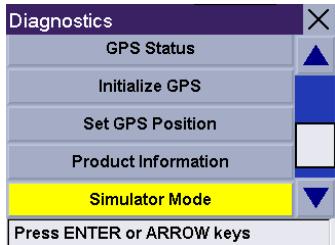
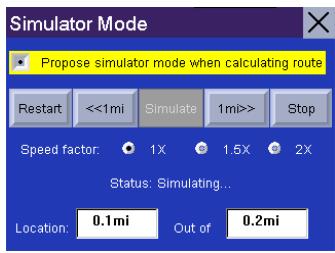
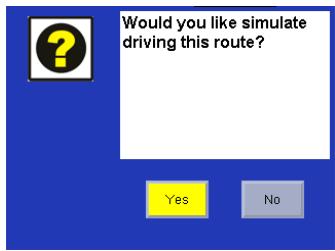
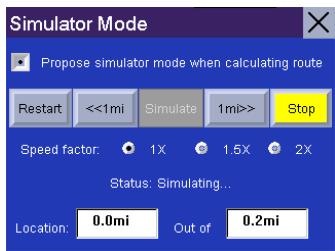
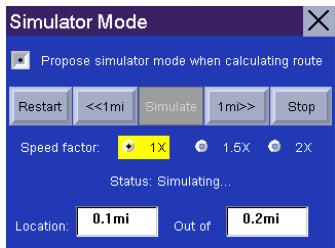
Chapter 10: User Options
Press Cancel to return to the map screen to view your route in progress.
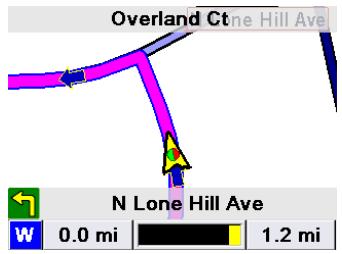
10.4.8.11 System Messages
Gives you information on errors that you can relay to Technical Support.
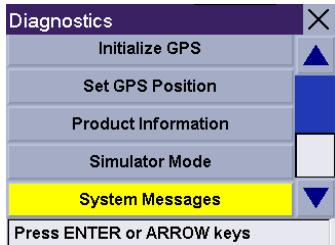
10.4.8.12 Repair
Repairs should only be done with the assistance of Magellan Technical Support. See "Chapter 1: Contact Information" on page 1.
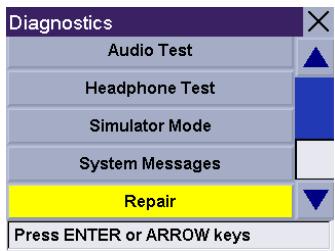
10.4.9 User - Edit Name
You can change the default user name. Select User - Edit Name.
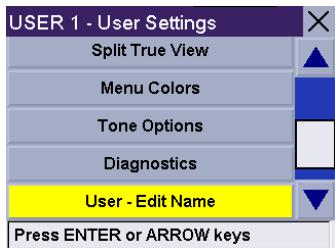
Use the backspace key to erase the default name and enter the name you wish to use for that user. When you have finished, select OK.
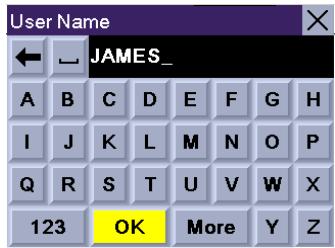
The user name is enabled.

Chapter 10: User Options
10.4.10 Password Settings
You can set a password for your user profile to protect your settings and to prevent unauthorized usage. Select Password Settings.
Select Set Password.
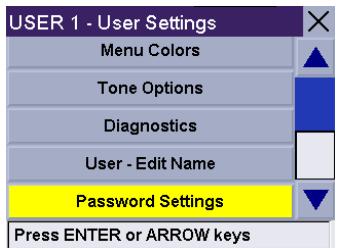
Enter the password you wish to use for your profile and select OK.
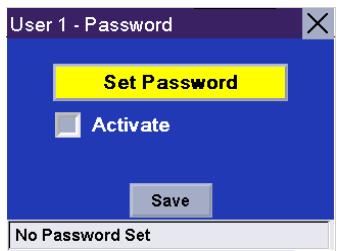
Select Activate. The box is checked indicating that the feature is active. Select Save.
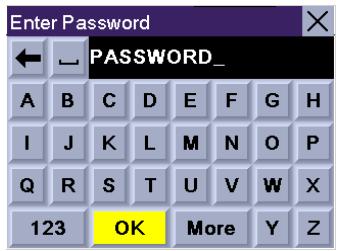
Confirm password protection activation by selecting Yes.
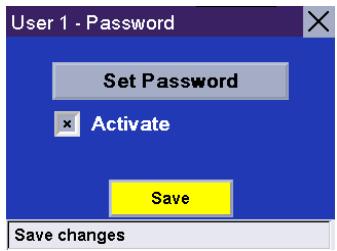
Password protection is now active. When you select your User profile at startup, you will be asked for your password in order to continue.
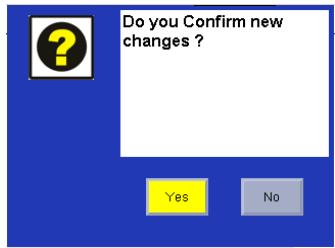
- Instructions for Operating the Magellan RoadMate 300R
- IMPORTANT INFORMATION
- Table of Contents
- Chapter 1: Contact Information 1
- Chapter 2: Information 2
- Chapter 3: Magellan RoadMate 5
- Chapter 4: Secure Digital (SD) Cards 8
- Chapter 5: Installation 10
- Chapter 6: Maps and Data 13
- Chapter 7: Basic Operation 15
- Chapter 8: Selecting Destinations 19
- Chapter 1: Contact Information
- Technical Support
- Warranty Service
- Customer Service
- Chapter 2: Information
- About Satellite Navigation
- How Satellite Navigation Works
- Line of Sight
- Precision
- A Word on the Safe Usage of GPS Maps
- From Source to Destination
- GPS Maps and Your Safety
- Care and Use of the Pre-Installed Regional Secure Digital (SD) Card
- Chapter 3: Magellan RoadMate
- Magellan RoadMate 300R
- Front View
- Rear View
- Left- and Right-Side Views
- Bottom View
- Chapter 4: Secure Digital (SD) Cards
- Secure Digital (SD) Cards
- To remove the SD card:
- To Insert the SD Card:
- Regional SD Card Coverage
- Chapter 5: Installation
- Vehicle Installation
- Installation with the Windshield Mount
- Installing the External Antenna
- Chapter 6: Maps and Data
- Basemaps vs. Detailed Map
- Basemap Routing vs. Detailed Map Routing
- Routing Outside Detailed Map Coverage
- Chapter 7: Basic Operation
- Turning the Magellan RoadMate On
- Using the Keypad
- Additional Characters (More)
- Numerical Characters (123)
- Using QuickSpell® and AutoFill™
- Help with Address Entry
- Chapter 8: Selecting Destinations
- Choosing the Route Method
- Changing the Route Method
- Select Route.
- Cancelling a Planned Route
- Detouring from the Planned Route
- Excluding a Maneuver in a Planned Route
- Accessing Regions
- Selecting a Destination Using "Select Address"
- Selecting a Destination Using "Address Book"
- Previous Destinations
- Routing to A Previous Destination
- Saving a Previous Destination to your Address Book
- List Addresses
- List All
- List Favorites
- Select List Favorites.
- Route - Select Route.
- Edit - Select Edit.
- Search Address Book
- Create New Entry
- Select on Map
- Select Address
- Dining, ATM, Gas...
- Search POI by Name
- Nearby Current Position
- Nearby City Center
- Search Nearest POI
- Current Position
- By City Center
- By Airport
- Search Basemap City
- Intersection
- Trip Planner
- New
- Edit
- Delete, Rename
- Selecting a Destination Using "Dining, ATM, Gas..."
- Search POI by Name
- Nearby Current Position
- Nearby City Center
- Search Nearest POI
- Current Position
- By City Center
- By Airport
- Search BaseMap City
- Selecting a Destination Using "Intersection"
- Selecting a POI on the Map
- Chapter 9: Traveling
- Guidance Information Screens
- Map Screen
- Changing the Map Zoom Levels
- Current Location
- Displaying Information About Your Current Location
- Save Location
- Chapter 10: User Options
- Trip Computer
- Stopping or Starting the Trip Computer
- Saving the Current Trip Report
- Resetting the Trip Computer
- Viewing a Saved Trip Report
- Deleting a Trip Report
- Track Recorder
- Start Track Recorder
- Stop Track Recorder
- Save Track Record
- View Track
- Delete, Rename Track
- Delete
- Rename
- Configuration
- Brightness
- Volume
- Auto Power Off
- Language
- User Settings
- POI Selection
- Map Options
- Select Map Color
- Route Preferences
- Split TrueView
- Menu Colors
- Tone Options
- Diagnostics
- GPS Status
- Initialize GPS
- Set GPS Position
- Search by Street
- Search By City
- Product Information
- Video Test
- Touch Screen Test
- Keypad Test
- Audio Test
- Headphone Test
- Simulator Mode
- System Messages
- Repair
- User - Edit Name
- Password Settings
Brand : MAGELLAN
Model : ROADMATE 300R
Category : Navigation GPS